TableSkim
A lightweight, fast viewer for tabular files. Open a large CSV, an Excel workbook, a Parquet or JSON file or a DuckDB / SQLite database and start scrolling immediately.
Linux · macOS · Windows — free and open source (AGPL-3.0)
Open first, wait never
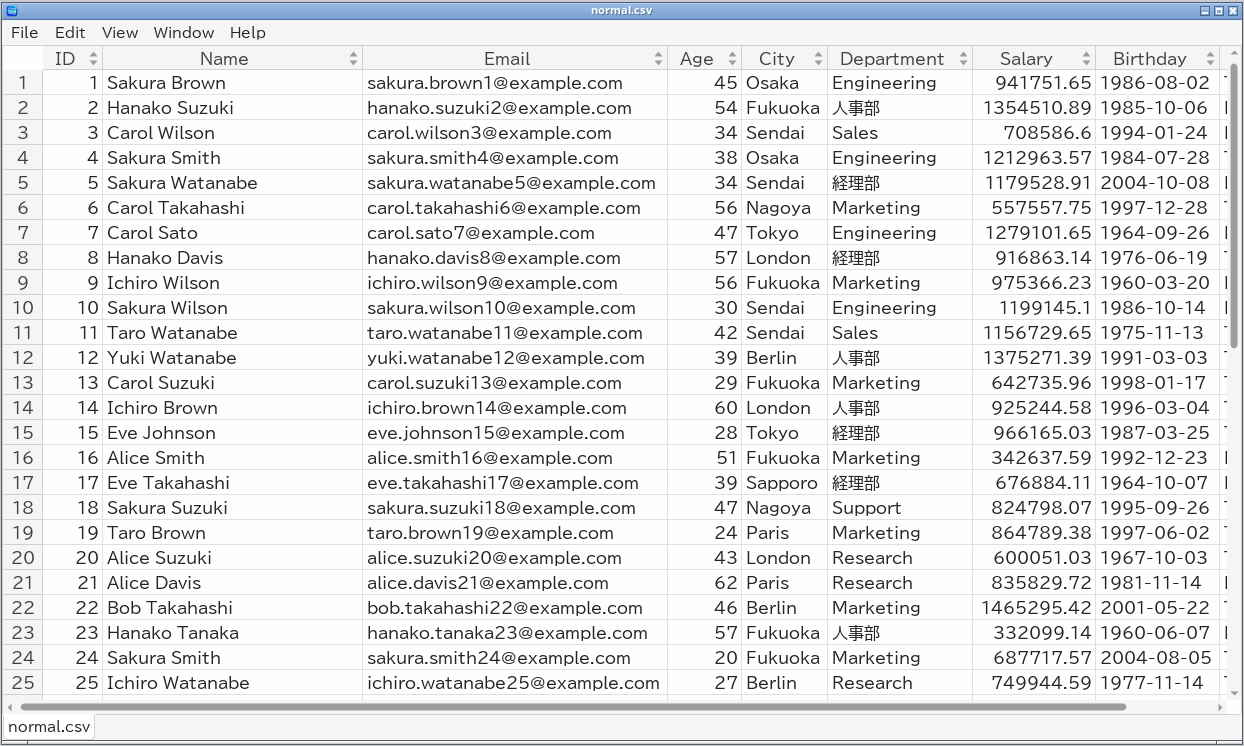
Rows are loaded on a worker thread while the window stays responsive, so even files of millions of rows open instantly. Sorting and filtering of Parquet files and databases run inside DuckDB or SQLite and work on tables of any size.
Native builds come with every library linked in: nothing else needs to be installed.
One program, two interfaces
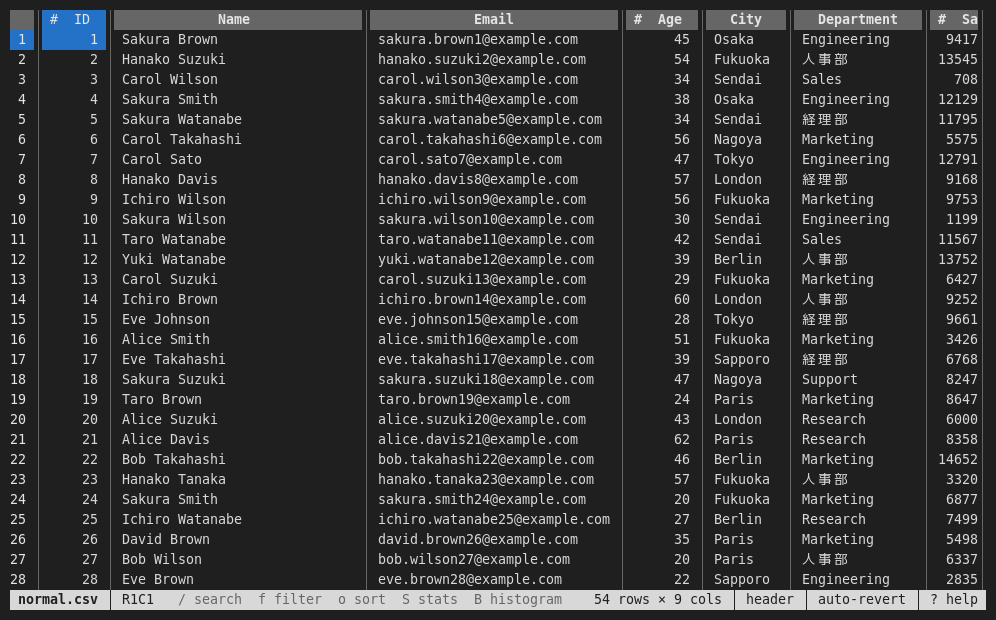
The same tableskim command opens a desktop window when a display is available,
and a full-featured terminal UI otherwise — handy over SSH. Both offer the same features.
Or right in your browser
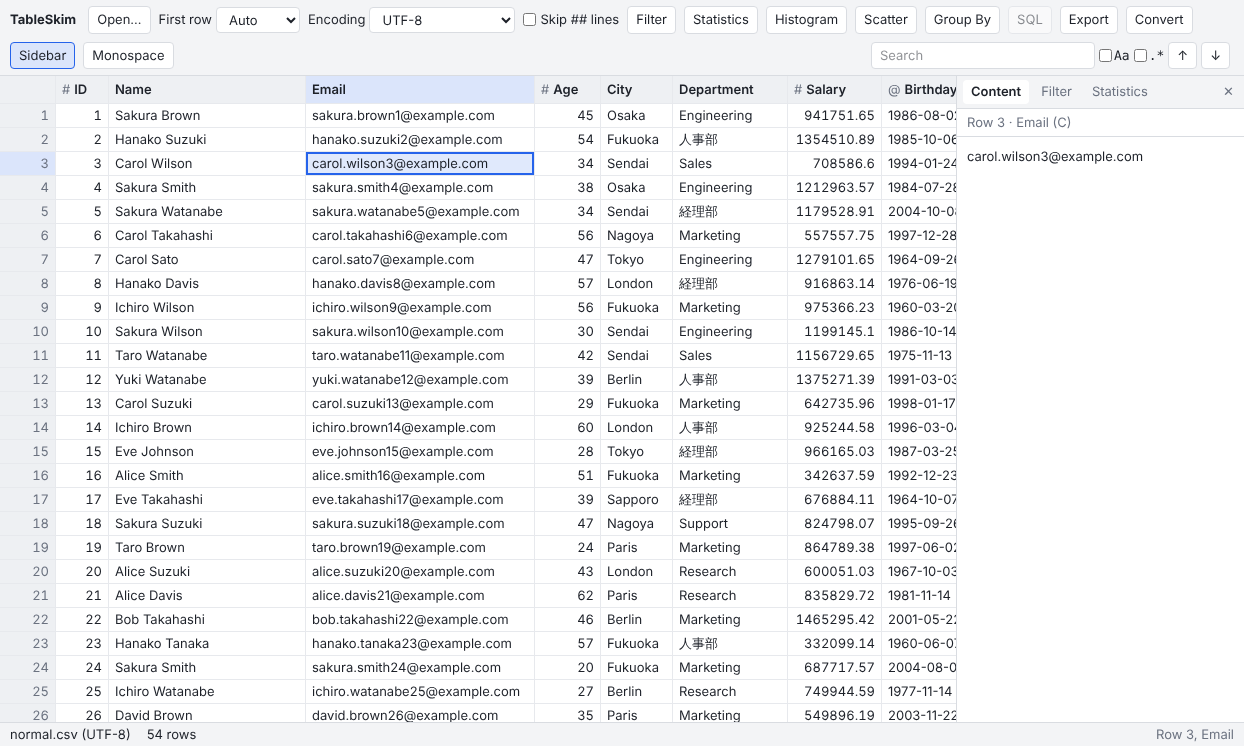
The web app runs the same core in your web browser, compiled to WebAssembly: open a file and it is read on your computer, never uploaded. Nothing to install, and it has the features of the desktop GUI except editing and following a growing file.
To run it on your own server, download the web app's ZIP from the download page. Using the web app →
Supported formats
- CSV / TSV
- gzip · bzip2 · xz · zstd compressed text
- VCF
- Excel (.xlsx, .xlsm)
- Parquet
- JSON · NDJSON / JSON Lines
- DuckDB
- SQLite
Text is read as UTF-8, UTF-16 or Shift_JIS (CP932), detected automatically. Every sheet of a workbook and every table and view of a database is shown as a sheet. More about file formats →
Features
Sort, filter and search
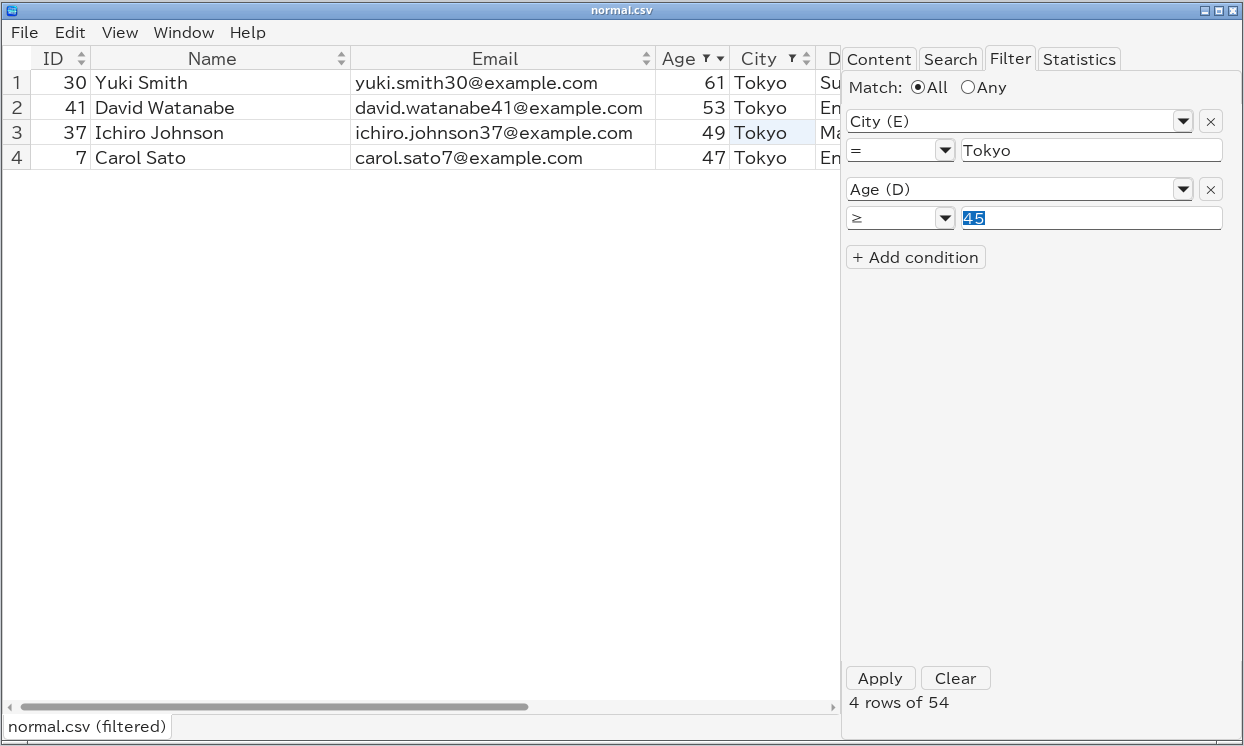
Filters on any number of columns that compare by type: numbers numerically, dates by day or time, booleans as TRUE / FALSE, and regular expressions.
Filtering →Column statistics
Row, empty and distinct counts, min / max, sum, mean, standard deviation and the most frequent values over the filtered rows.
Statistics →Charts
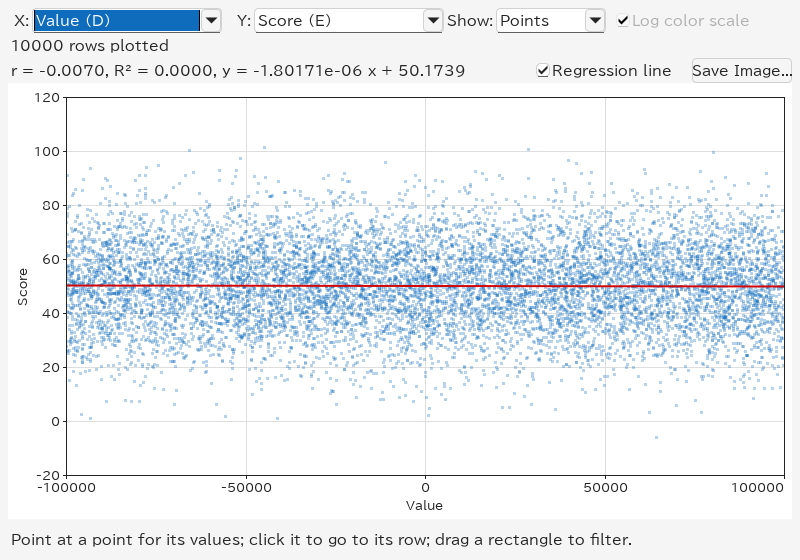
Histograms, scatter plots with the correlation and least-squares line, 2D density and box plots. Double-click a bar to filter to its rows; save charts as PNG or SVG.
Charts →Group By
Count the rows by the values of some columns, with the sum, mean, min, max and more of others, into a sheet of its own.
Group By →SQL
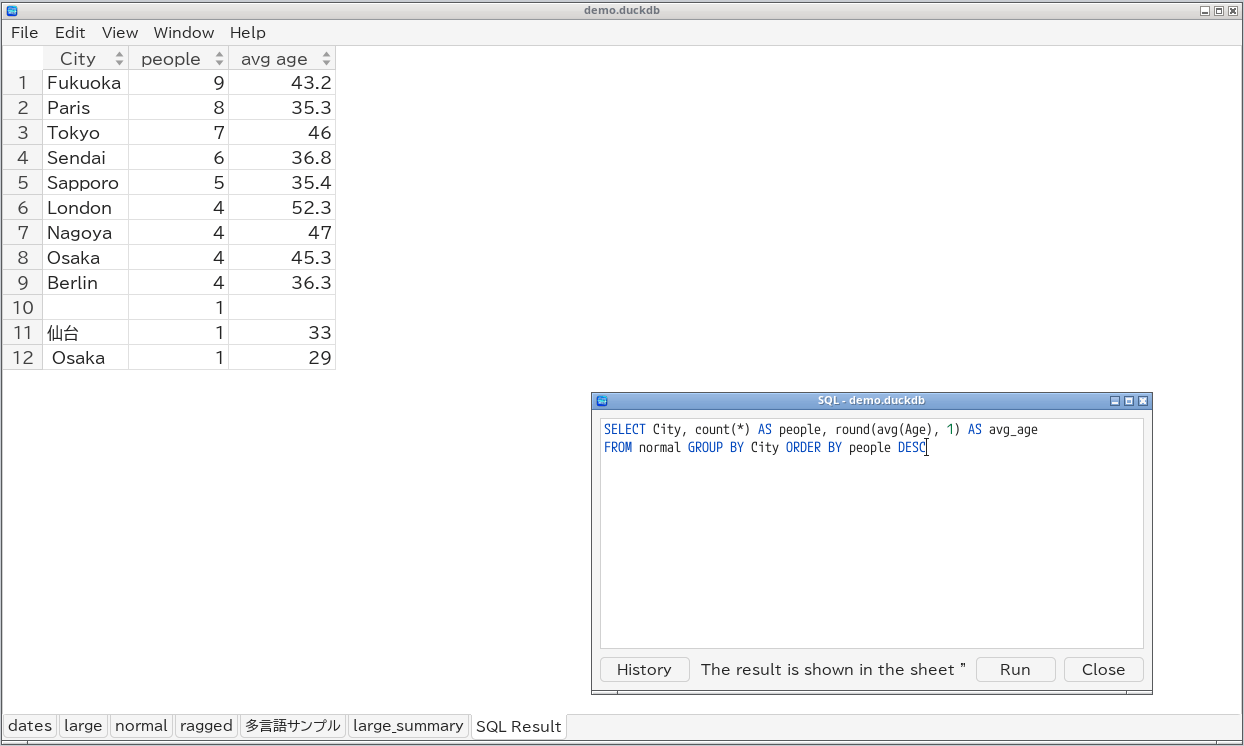
Query DuckDB, SQLite, Parquet and JSON files; the result is shown as a sheet. History shared by all windows, and Tab completion of tables, columns and keywords.
SQL →Export and convert
Export a sheet as shown — sorted, filtered, without hidden columns — to CSV, TSV, Excel or Parquet, or convert a text file to Parquet or DuckDB with typed columns.
Exporting →Edit cells
Edit CSV / TSV and Excel files in edit mode, with undo and paste. Saving rewrites only the edited lines, keeping the encoding and compression.
Editing →Follow a growing file
Like tail -f: appended lines of CSV / TSV files are read as they arrive,
and filters, statistics and charts keep up with them.
Made for wide tables
Hide and freeze columns, go to a row, cell or column by name, and set number and date formats per column.
Keyboard shortcuts →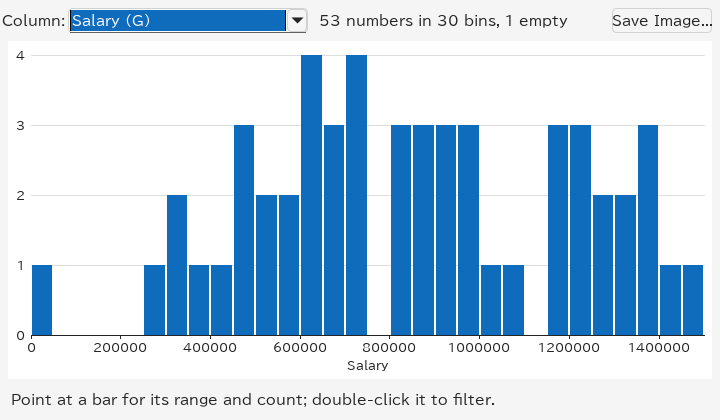
Download
Native packages for every platform, with all libraries built in. The download page suggests the one for your system and describes each file.
| Platform | Packages |
|---|---|
| Linux | .deb (Ubuntu 24.04 or later), .rpm (RHEL 10 and its
rebuilds), or a .zip for any distribution with glibc 2.28 or later (GUI and terminal UI,
X11-only GUI, or terminal UI only) |
| macOS | .dmg disk image or .zip containing
TableSkim.app |
| Windows | Installer (.exe) or .zip |
Then open a file:
tableskim data.csv          # GUI when a display is available
tableskim -t data.parquet # terminal UIDocumentation
The user manual is also built into the GUI (Help → User Manual, F1)
and installed with the packages. It is available in
English and 日本語.
- Getting Started: installing, starting TableSkim and command-line options
- Supported File Formats: what TableSkim can open, text encodings and compression
- Using the GUI: the window, menus, sidebar and all GUI features
- Using the Terminal UI: the terminal screen and its keys
- Using the Web App: setting up and using TableSkim in a web browser
- Sorting, Filtering, Searching and Statistics: how values are compared
- Charts and Group By: histograms, scatter plots, box plots and Group By
- Running SQL: queries on DuckDB, SQLite, Parquet and JSON files
- Exporting and Converting: saving the view and converting text files
- Editing Cells: changing and saving CSV / TSV and Excel files
- Keyboard Shortcuts: a quick reference for both interfaces
To build TableSkim from source, see the README on GitHub.