TableSkim User Manual
TableSkim is a lightweight, fast viewer for tabular files. Open a large CSV file, an Excel workbook, a Parquet or JSON file, or a DuckDB / SQLite database, and start scrolling immediately: rows are loaded in the background while the window stays responsive.
TableSkim has two user interfaces in one program:
- a graphical interface (GUI) for desktop use, and
- a terminal interface (TUI) for use in a terminal, for example over SSH.
Both offer the same features: sorting, filtering, searching, column statistics, histograms, scatter plots, grouping (Group By), SQL, hiding and freezing columns, number and date formats, following a growing file (tail -f), exporting, and editing cells of CSV / TSV and Excel files in edit mode.
A web app runs the same core in a web browser, without installing anything and without uploading the files it opens; it has these features except editing and following a file (see Using the Web App).
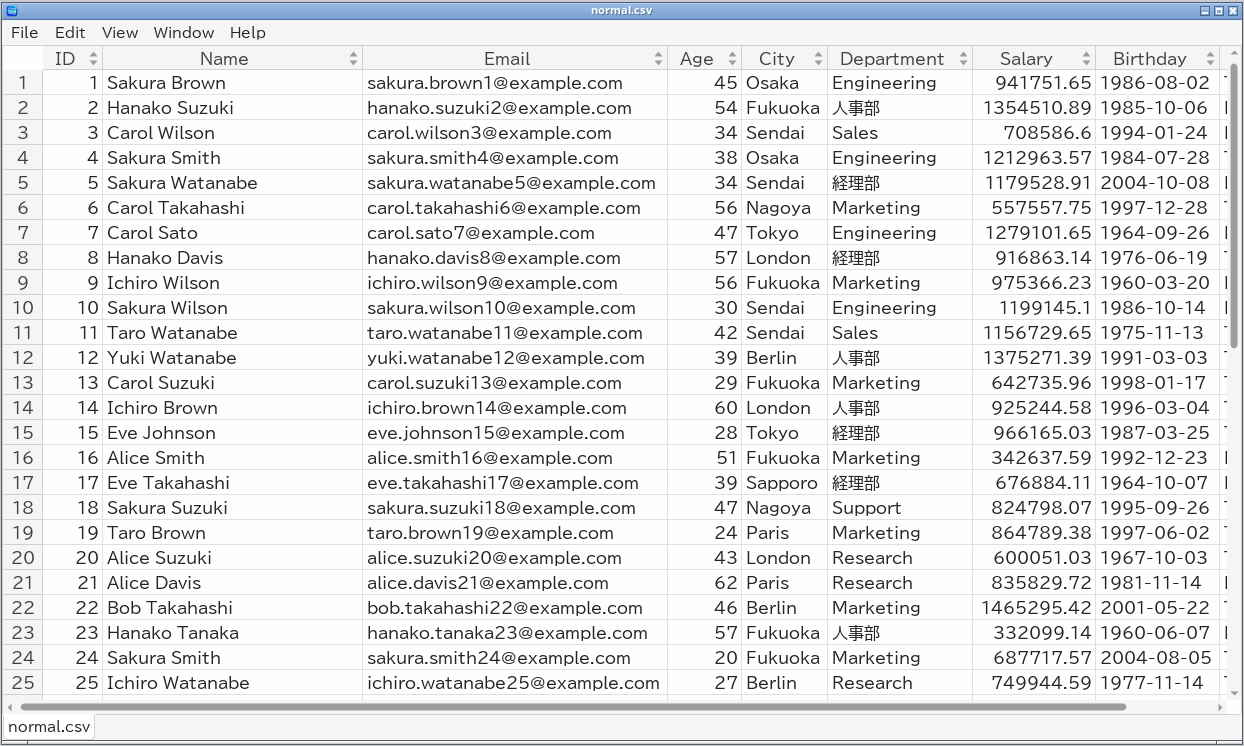
Contents
- Getting Started: installing, starting TableSkim and command-line options
- Supported File Formats: what TableSkim can open, text encodings and compression
- Using the GUI: the window, menus, sidebar and all GUI features
- Using the Terminal UI: the terminal interface and its keys
- Using the Web App: setting up and using TableSkim in a web browser
- Sorting, Filtering, Searching and Statistics: how comparisons work, how histogram bins are chosen and how rows are grouped, shared by both interfaces
- Charts and Group By: which chart answers which question, how to read histograms, scatter plots and box plots, grouping rows into tables, and saving charts as images, with examples
- Running SQL: querying DuckDB, SQLite, Parquet and JSON files
- Exporting and Converting: saving the view and converting text files to Parquet / DuckDB
- Editing Cells: changing cells of CSV / TSV and Excel files in edit mode, and saving them
- Keyboard Shortcuts: a quick reference for both interfaces and the web app