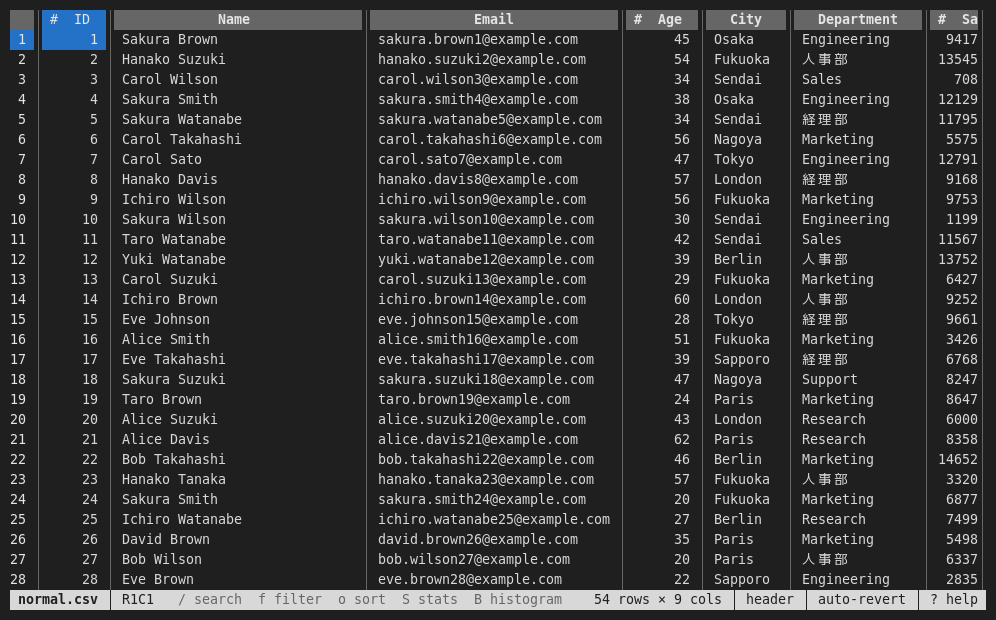
The terminal UI (TUI) runs in a terminal, so you can browse tables on a remote server over SSH. It offers the same features as the GUI, including histograms; of the scatter plot, it shows the 2D density.
tableskim data.csv        # without a graphical display
tableskim -t data.csv     # force the terminal UI
tableskim-tui.exe data.csv   # Windows
The terminal UI starts automatically when there is no graphical display (see Getting Started). It shows exactly one file, given on the command line. Press q (or Ctrl+C) to quit.
# numbers, @ dates, ? booleans (see Column types and formats).
R1C1), messages, the number of rows and columns, and the active options (header, auto-revert, the filter, the search). When there is no message, it lists the keys used most (/ search f filter o sort …, and in edit mode Enter edit u undo ^S save …), as many as fit.
Press ? (or F1) at any time for the list of keys.
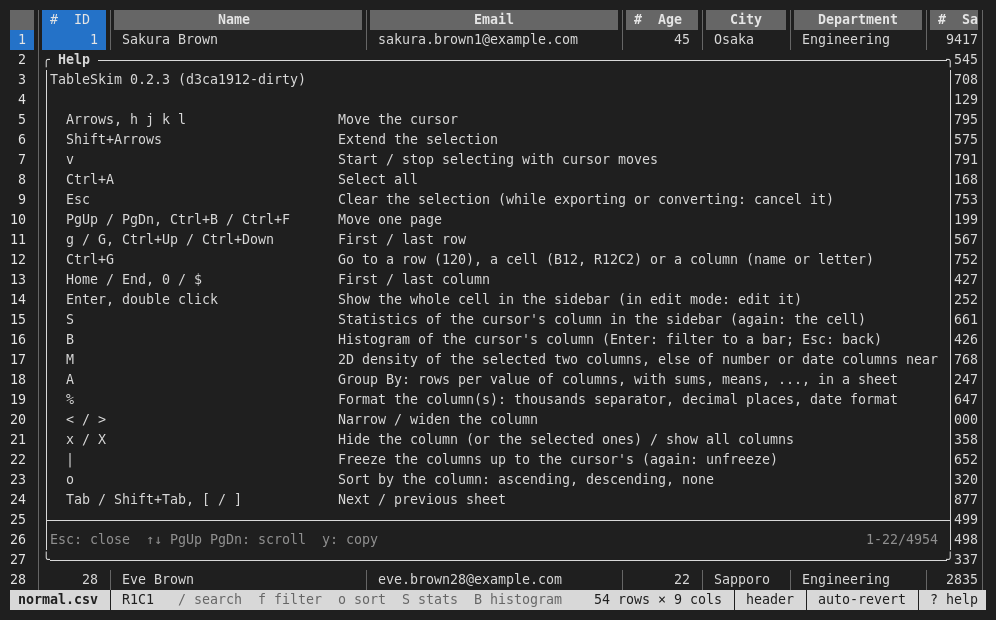
| Key | Action |
|---|---|
Arrows, h j k l | Move the cursor |
PgUp / PgDn, Ctrl+B / Ctrl+F | Move one page |
g / G, Ctrl+Up / Ctrl+Down | First / last row |
Home / End, 0 / $ | First / last column |
Shift+arrows | Extend the selection |
v | Start / stop selecting with cursor moves |
Ctrl+A | Select all |
Esc | Clear the selection; while exporting or converting, cancel it instead |
< / > | Narrow / widen the column |
The mouse also works: click a cell to move the cursor, double-click to show the cell in the sidebar, use the wheel to scroll, and click a sheet tab to switch sheets.
Enter (or a double click) shows the whole value of the current cell in the sidebar, which is useful for long text.
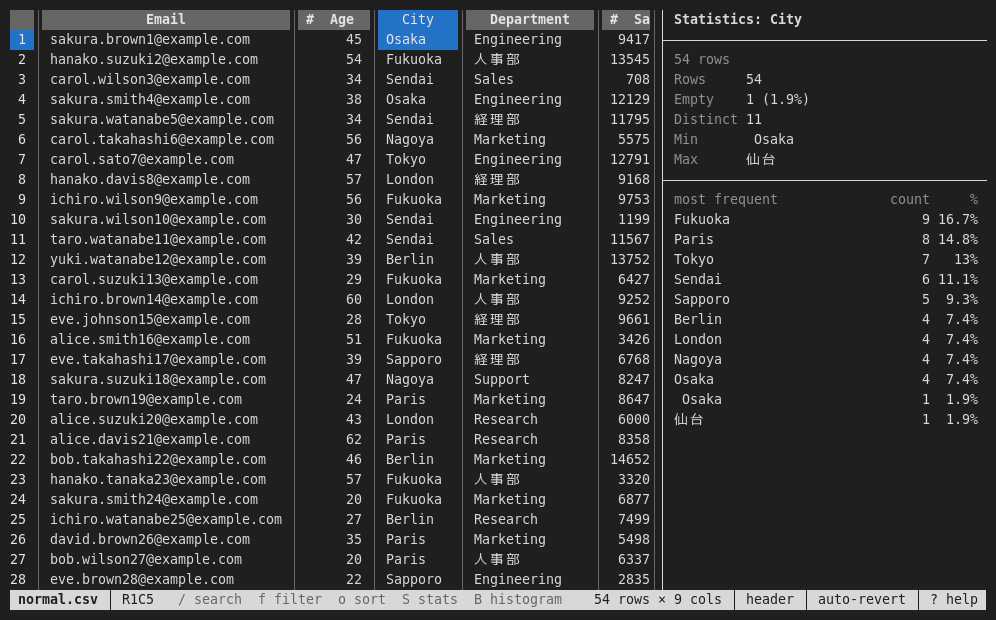
S shows the statistics of the current column: rows, empty cells, distinct values, minimum and maximum (and the sum, mean and standard deviation for numbers), and the most frequent values. Press S again to go back to the cell.
s shows or hides the sidebar.
Charts and Group By shows, with examples, how to read the charts and the Group By results.
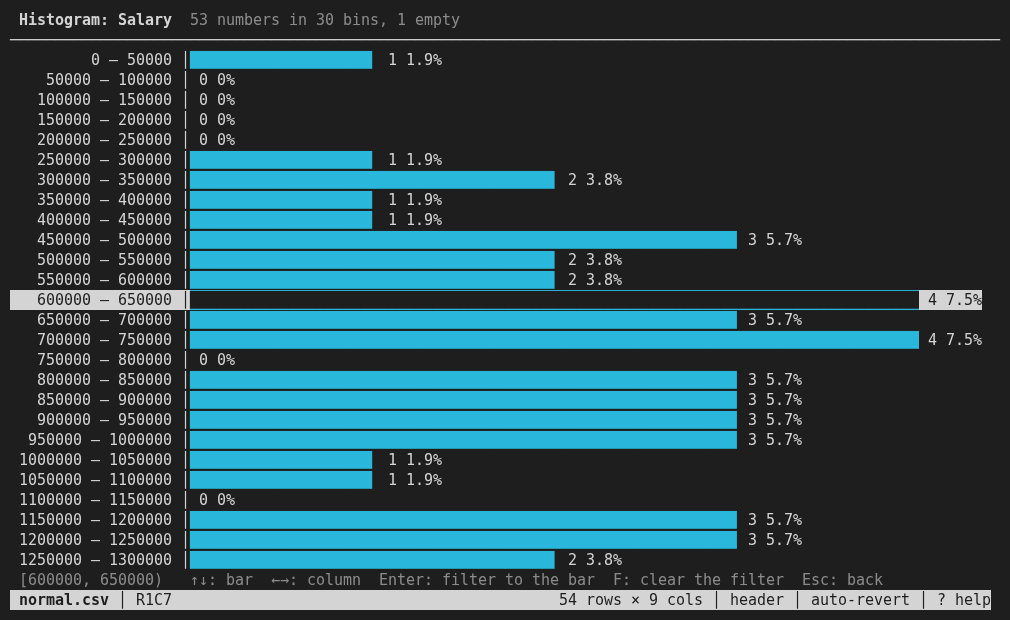
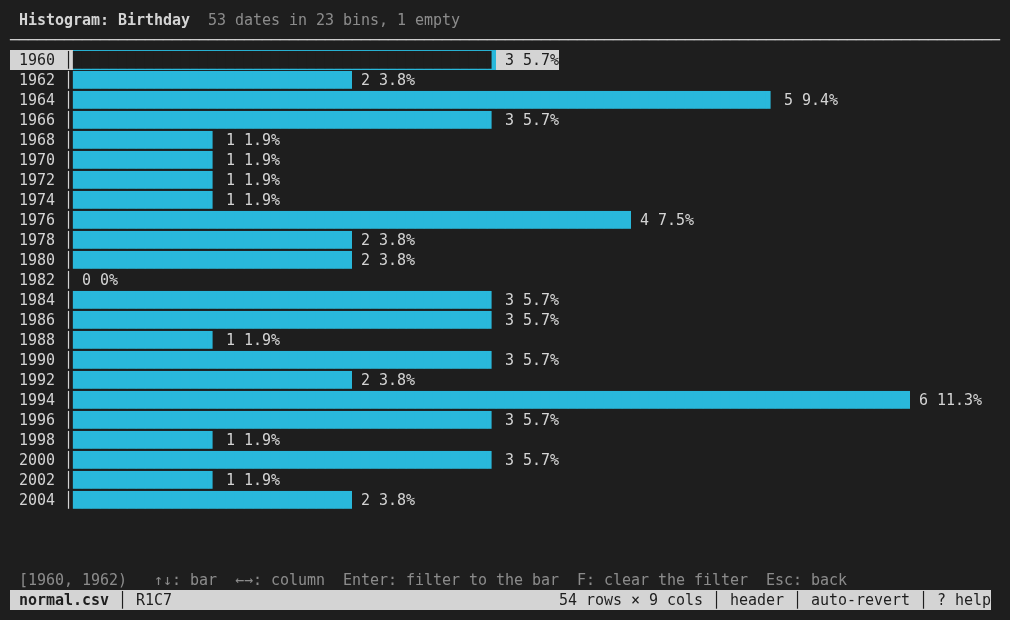
B shows a histogram of the current column in place of the sheet. The title line summarizes what was counted, and each line is one bar with its range, count and percentage.
| Key | Action |
|---|---|
↑ / ↓, k / j | Select a bar; its exact range is shown at the bottom |
← / →, h / l | Histogram of the previous / next column |
Enter | Filter the sheet to the rows of the selected bar |
F | Clear the filter |
Esc, B, q | Back to the sheet |
As in the GUI, numbers are counted into about 30 bins of round widths, dates into bins of whole days, months, years and so on, and text columns show their most frequent values. After Enter, the histogram is computed again for the rows left, so you can narrow down step by step; press Esc to see the filtered sheet.
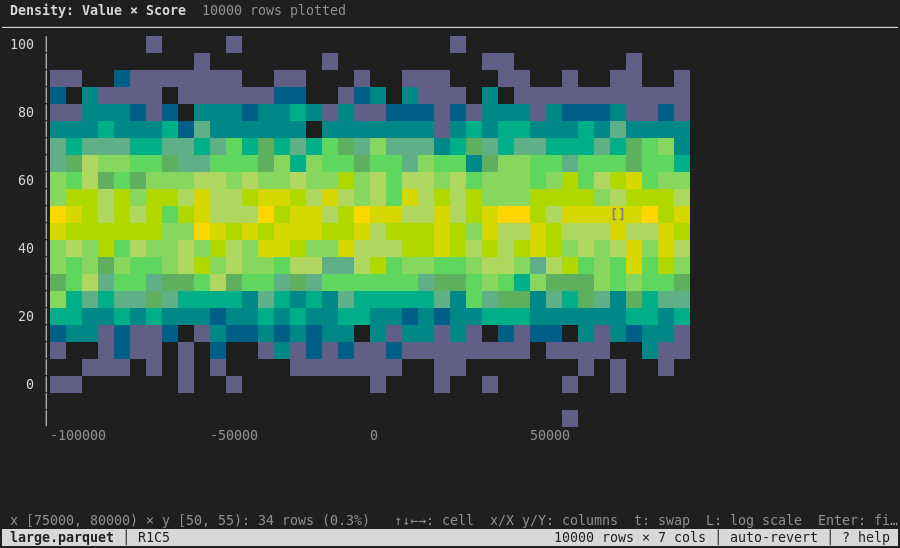
M shows how two columns relate, in place of the sheet: the first and last of the selected columns on the horizontal (X) and vertical (Y) axes, or else columns holding numbers or dates chosen as in the GUI: Y is the cursor's column or the nearest such one, X the nearest such one to its left. The plot is a grid of cells, each coloured by the number of rows whose X and Y values fall in it, from dark purple (few) to yellow (many); empty cells stay blank. The grid is sized to the terminal. The densest cell is selected first, and the line at the bottom shows its ranges and count. The title line also shows Pearson's correlation coefficient r, R² and the least-squares line of the rows plotted, as in the GUI.
| Key | Action |
|---|---|
Arrows, h j k l | Select a cell |
x / X | Next / previous column on X |
y / Y | Next / previous column on Y |
t | Swap X and Y |
L | Logarithmic / linear colour scale |
Enter | Filter the sheet to the rows of the selected cell |
F | Clear the filter |
Esc, M, q | Back to the sheet |
Y must hold numbers or dates, as for the GUI's scatter plot. The colours need a terminal with 256 or more colours.
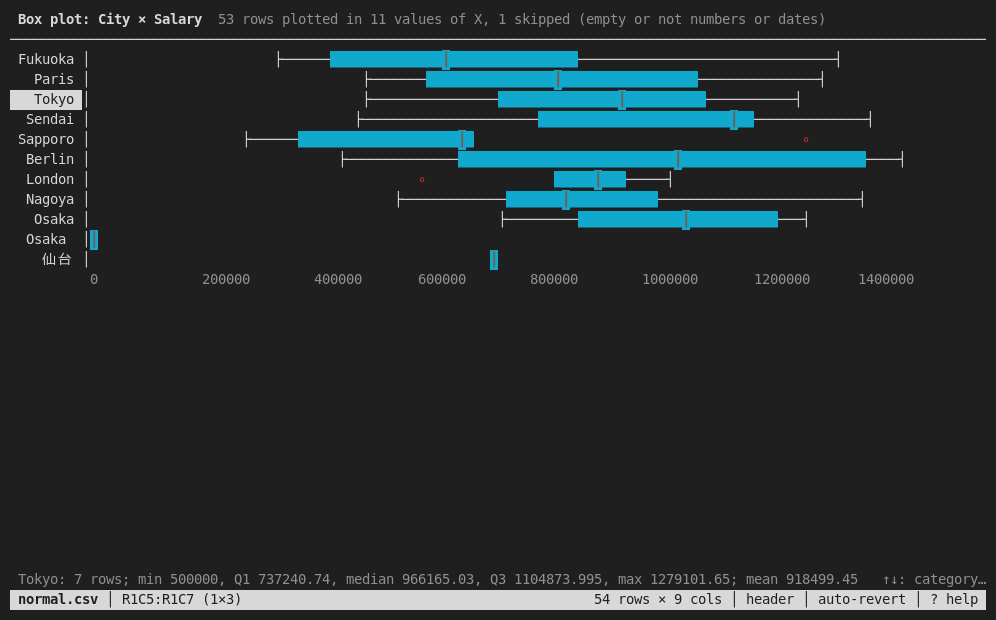
When X holds text, each of its 30 most frequent values (and (other) for the rest) gets a line of its own, showing a box plot of its Y values: the whiskers ├──┤, the box ███ from the first to the third quartile, the median ┃ and outliers ∘, on a common scale. The line at the bottom shows the numbers of the selected category.
| Key (box plot) | Action |
|---|---|
↑ / ↓, k / j | Select a category |
b | The density instead (a column per category); again: back |
Enter | Filter the sheet to the selected category |
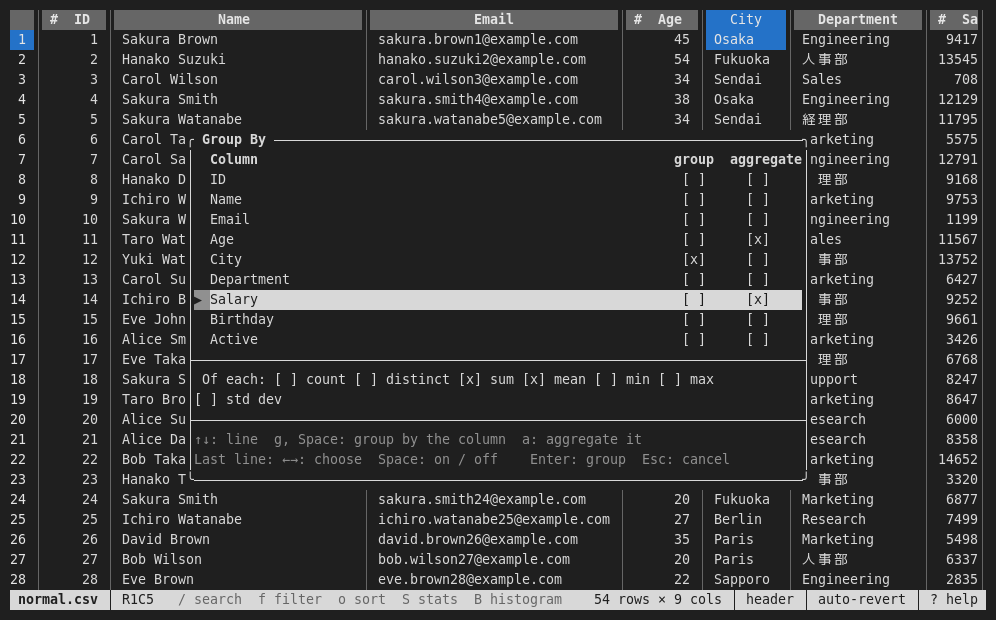
A counts the rows of the current sheet (sorted and filtered as shown) by the values of some columns and shows the result in a new sheet named Group By, as the GUI's Group By does. A dialog lists the columns: the selected ones (or the cursor's) are checked to group by.
| Key | Action |
|---|---|
↑ / ↓, k / j | Move between the columns and the last line |
g, Space | Group by the column (again: not) |
a | Aggregate the column (again: not) |
← / →, Space | On the last line: choose a function, turn it on or off |
Enter | Group the rows |
Esc | Close without grouping |
The functions are count (non-empty values), distinct, sum, mean, min, max and std dev; each one makes a column for each aggregated column, after the group columns and count, the rows of the group. The status bar shows the progress, and Esc cancels. The sheet stays when the file is reloaded; grouping again replaces it.
o sorts by the current column: ascending, then descending, then back to the file order.
Chart selections are kept as Additional narrowing, ANDed with the editable conditions even in OR mode. In the filter editor, Ctrl+X removes only this additional narrowing; the existing clear-filter command (F on the sheet or chart) removes both. Further chart selections narrow the remaining rows again.
On a cell, = keeps only the rows with the same value in that column, and ! keeps only the rows with a different value. F clears the filter.
f opens the filter dialog, which edits the same kind of filter as the GUI Filter pane.
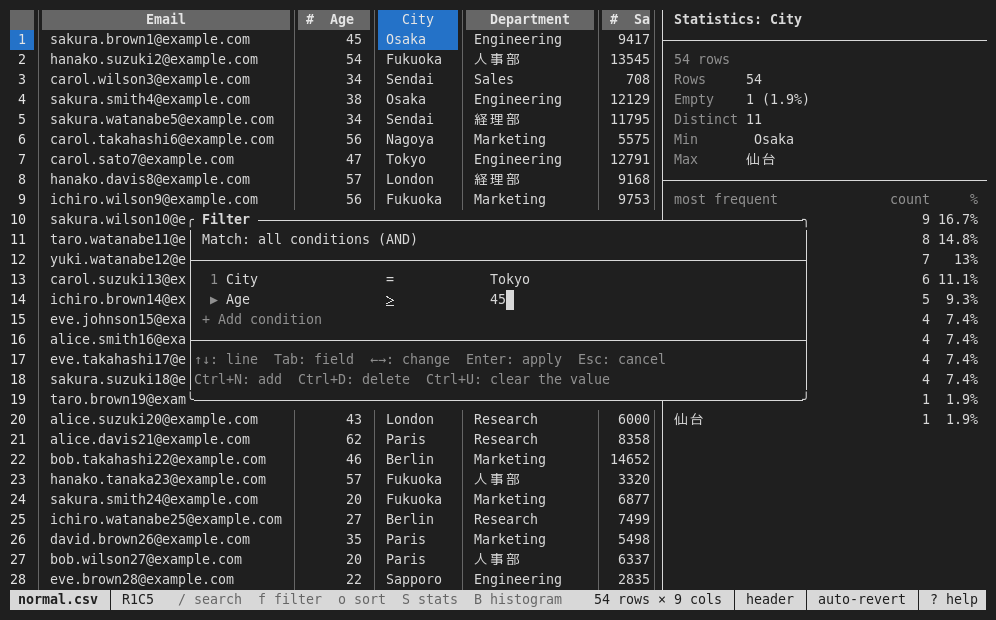
| Key | Action |
|---|---|
↑ / ↓ | Move between lines (the Match line, the conditions, "Add condition") |
Tab | Move between the fields of a condition: column, operator, value |
← / → | Change the column or the operator; on the Match line, switch between all (AND) and any (OR) |
| typing | Edit the value |
Ctrl+N | Add a condition |
Ctrl+D | Delete the condition |
Ctrl+U | Clear the value |
Ctrl+X | Clear additional chart narrowing |
Enter | Apply the filter (on "Add condition": add a condition) |
Esc | Close without applying |
The status bar shows how many rows match and the filter in use:
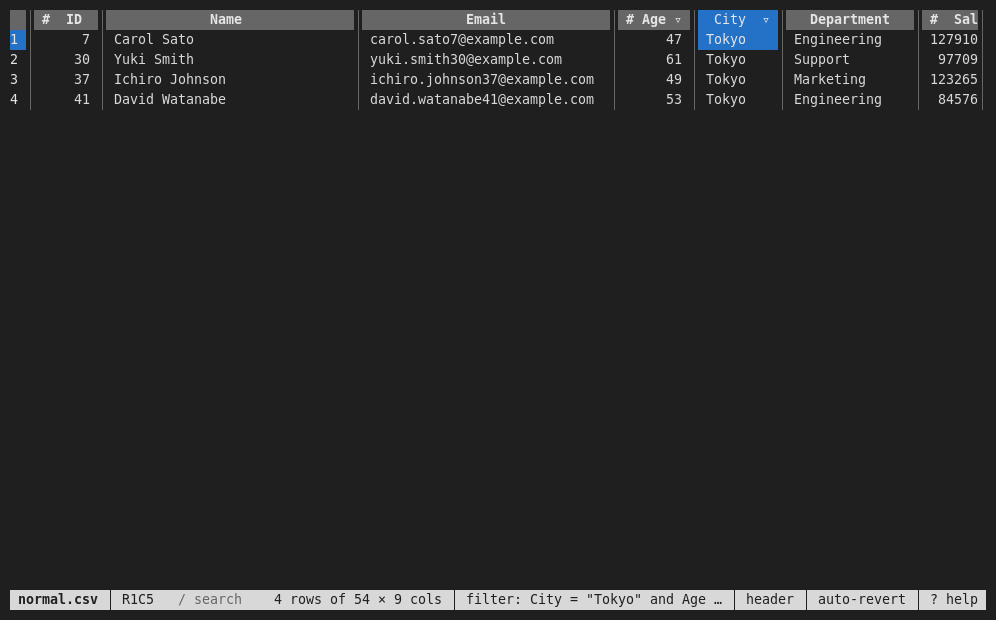
The operators and how values are compared are described in Sorting, Filtering, Searching and Statistics.
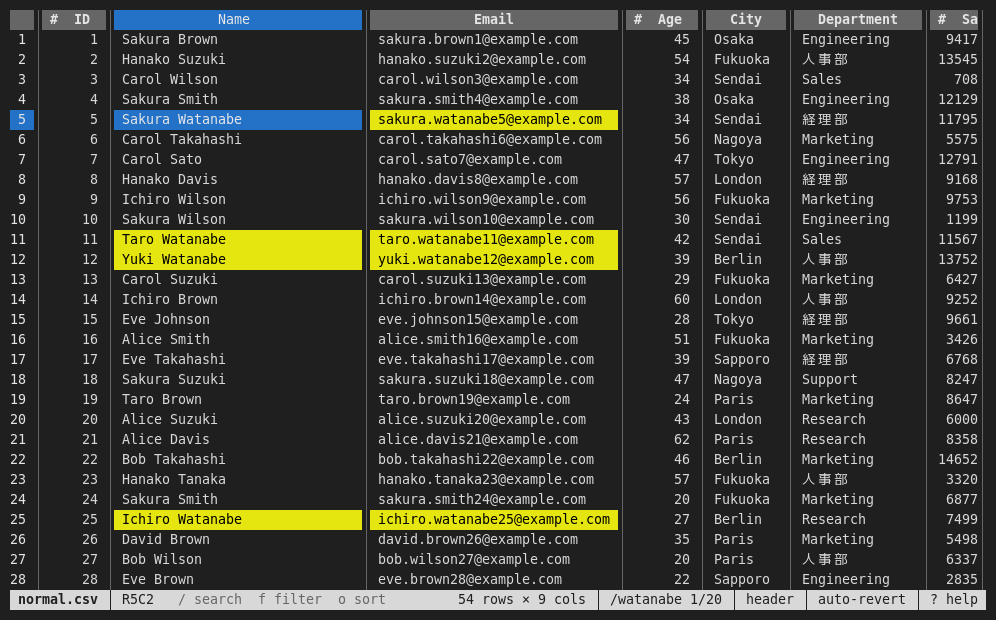
/ opens the search prompt at the bottom. Type the text and press Enter. Ctrl+R in the prompt toggles regular expression search. n / N move to the next / previous hit; the status bar shows the query and the hit number (/watanabe 1/20). An empty search clears the search.
Ctrl+G asks for a row (120), a cell (B12 or R12C2) or a column (its letter or name), as in the GUI.
x hides the current column (or the selected columns); X shows all columns again.
| freezes the columns up to the cursor, so that they stay in place when scrolling sideways; press | again to unfreeze.
The mark before a column name is judged from the first 1,000 rows read, as in the GUI: # numbers, @ dates and date-times, ? booleans; text and mixed columns have none.
% changes how the current column (or the selected columns) shows its values. The dialog also shows the column's type.
| Line | ← / →, Space |
|---|---|
| Thousands separator | On / off: 1234567.5 is shown as 1,234,567.5 |
| Decimal places | As stored, or 0 to 6 places (rounded) |
| Date format | 2024-01-31, 2024/01/31, 01/31/2024, 31/01/2024, 2024年1月31日, Jan 31, 2024 |
↑ / ↓ move between the lines, Delete resets the format, Enter applies it and Esc closes the dialog. Only the display changes: sorting, filtering, copying and exporting use the values as they are.
y or c copies the selection (or the current cell) as tab-separated text.
Copying uses the OSC 52 escape sequence, so it also works over SSH: the text goes to the clipboard of the computer where your terminal runs. The terminal must allow OSC 52; inside tmux, enable set-clipboard:
set -g set-clipboard on
Tab / Shift+Tab (or ] / [) switch to the next / previous sheet. You can also click a tab.
For DuckDB, SQLite, Parquet and JSON files, : opens the SQL prompt.
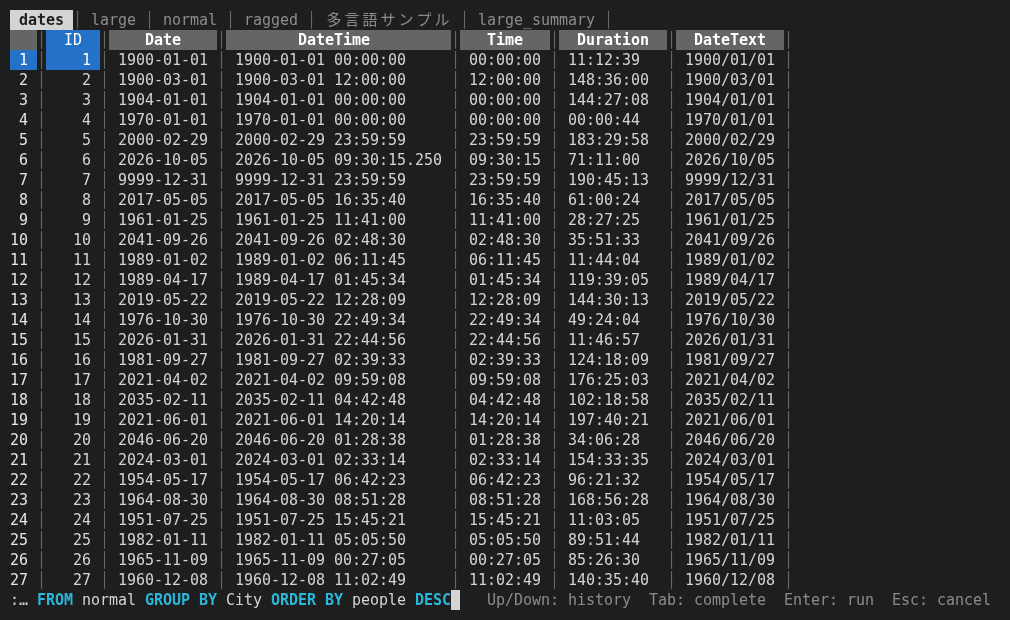
Enter runs the query; a query result is shown as the sheet SQL Result.
Up / Down recall SQL run before.
Tab completes table names, column names and keywords.
Esc cancels.
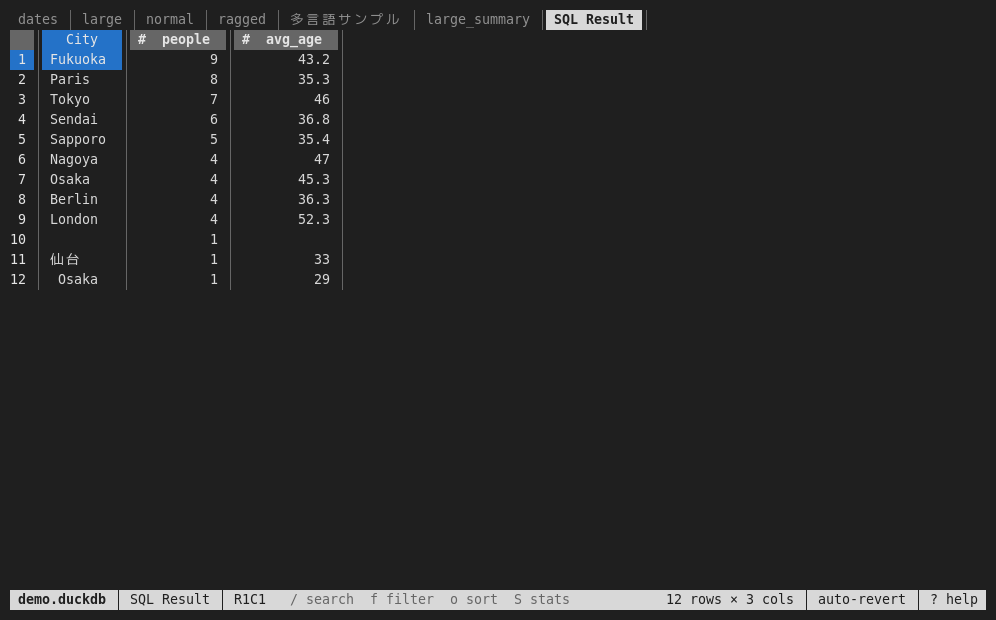
See Running SQL for details.
w exports the current sheet as shown (sorted, filtered, without hidden columns). A prompt suggests a file name; the extension (.csv, .tsv, .xlsx or .parquet) selects the format.
P / D convert a text file to Parquet / DuckDB next to the original file and open the result.
Progress is shown in the status bar; Esc cancels (instead of clearing the selection). Until it has finished, the file is not reopened: r, H, # and E ask you to wait, and Auto Revert waits. If the target file exists, TableSkim asks Overwrite? (y/n). See Exporting and Converting.
Cells of CSV / TSV and Excel files can be changed in edit mode only: I turns it on and off, and the status bar shows EDIT. Then Enter, i, F2 or a double click edits the cell in the status line, Delete clears the selected cells, pasting into the terminal fills the selected cells with tab-separated text, u / Ctrl+R undo and redo, and Ctrl+S saves the file. Edited cells are green and the file name starts with * until saved. Before unsaved changes would be lost (q, r, H, #, E, or leaving edit mode), TableSkim asks: y saves, n discards, Esc cancels. See Editing Cells.
T follows the end of the file, like tail -f: the file is checked every second (with or without Auto Revert), and the cursor moves to the last row whenever rows are added. The status bar shows follow. For CSV / TSV files that are not compressed (in UTF-8 or Shift_JIS), only the appended lines are read, and a line being written is shown once it ends. Other files, and files that were rewritten rather than appended to, are reloaded. Press T again to stop following.
| Key | Action |
|---|---|
H | First row: switch between the guess and header / data (CSV / TSV / Excel) |
# | Skip lines starting with ## (on by default for VCF) |
E | Switch the text encoding: UTF-8, UTF-16LE, UTF-16BE, Shift_JIS (CP932) |
r | Revert (reload the file) |
R | Toggle Auto Revert (reload the file when it changes) |
T | Follow the end of the file as it grows (tail -f) |
e | Show the file in the file browser |
When the rows of a large CSV / TSV file take a lot of memory, the status bar asks Continue reading? (y/n), like the GUI (see Supported File Formats).
Log messages are written only with --log <file>, because they would otherwise be drawn over the screen.
See Keyboard Shortcuts for the full list.