On macOS, use Cmd wherever this page says Ctrl.
The web app is TableSkim running in a web browser. The same core as the GUI and the terminal UI, compiled to WebAssembly, reads the file inside the browser: the files you open are never uploaded, and nothing needs to be installed on the computers that use it. It opens every format the other interfaces open (see Supported File Formats) and has most of their features; Differences from the GUI lists what it lacks.
The web app is a folder of static files, released as tableskim-<version>-web.zip. Put the folder on any web server, under any path, and open the folder's URL with the slash at the end, for example https://example.com/tools/tableskim/. No program runs on the server.
http://localhost / http://127.0.0.1. Opening index.html as a file does not work.
Cross-Origin-Opener-Policy: same-origin
Cross-Origin-Embedder-Policy: require-corp
Where they cannot be set (GitHub Pages, for one), the page registers a service worker that adds them, for its folder only, and reloads once. If the page still says it must be served cross-origin isolated, the server or the browser does not allow either.
python3 -m http.server 8000 in the folder and open http://localhost:8000/.
Use a recent browser. The web app is tested in Chromium (Google Chrome, Microsoft Edge).
To use it without a server of your own, open the latest release's web app on the TableSkim website: informationsea.github.io/tableskim/app/. It, too, reads the files in your browser only.
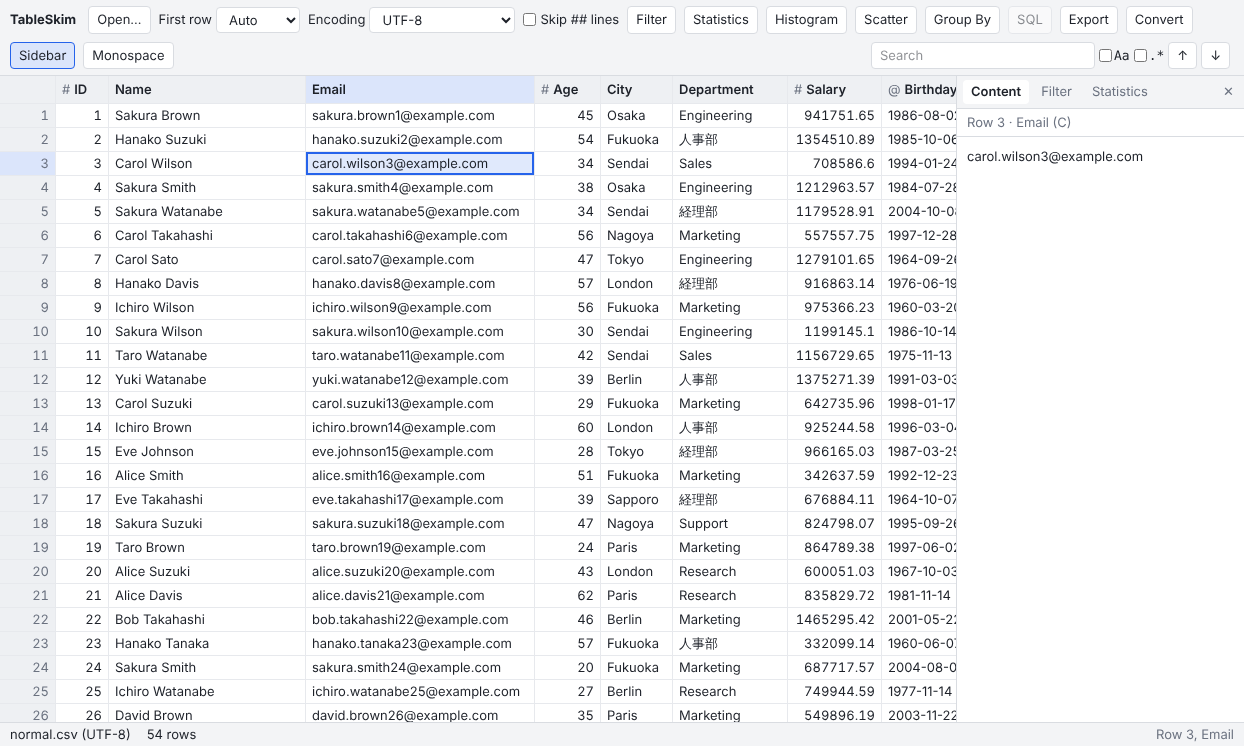
# numbers, @ dates, ? booleans) and the sort arrow. A filtered column's name is underlined in the accent colour.
4 rows of 54 when filtered), the filter, and the cursor's row and column.
The page follows the light or dark appearance of the system.
Ctrl+O) and choose a file, or drop a file anywhere on the page.
##, such as the meta-information of VCF files. It is on by itself for VCF files.
Page Up / Page Down, Home / End move the cursor; Ctrl+Home / Ctrl+End go to the first / last row. Ctrl+End keeps following the last row while a text file is still being read.
Shift+click or drag to select a range, Shift with a movement key to extend the selection. Click a row number to select the row. Ctrl+A selects everything.
Ctrl+C, or Copy in the cell menu, copies the selection as tab-separated text (hidden columns left out), ready to paste into a spreadsheet. Up to 100,000 rows are copied at a time; rows not read yet are left out, and the status bar says so.
Right-click a cell or a column header for its menu: copying, quick filters, sorting, the column's statistics, charts and Group By, formats, hiding and freezing.
Ctrl+G opens Go To. Type a row number (120), a column letter (C), a header name or a cell (C120) and press Enter, as in the GUI.
The Sidebar button shows or hides the sidebar. Its tabs:
Enter or a double click on a cell opens it.
Drag the sidebar's left edge to make it wider; the width is kept in the browser.
Click a column header to sort by that column: the first click sorts in ascending order, the second in descending order, and the third restores the file order. The column menu has Sort Ascending, Sort Descending and Clear Sort. How values compare is explained in Sorting, Filtering, Searching and Statistics.
The Filter button (Ctrl+Shift+F) opens the Filter pane of the sidebar, laid out like the GUI's.
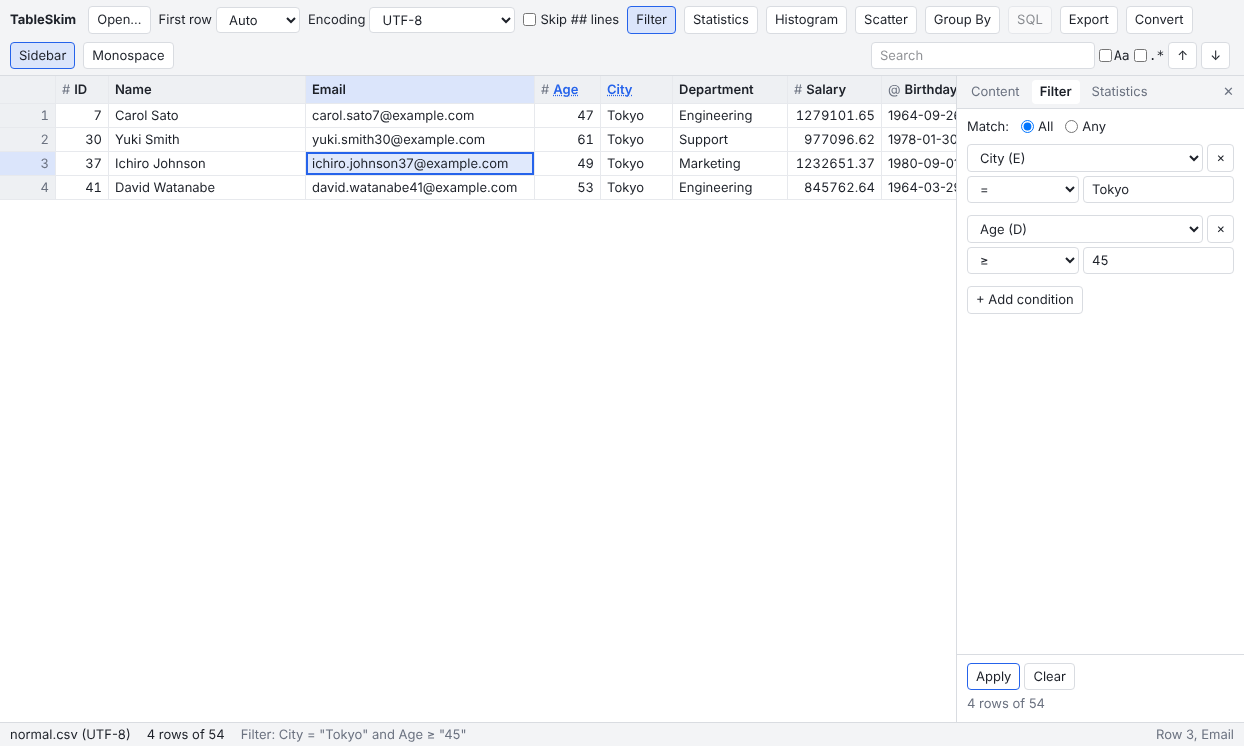
Enter in a value field) applies the filter; until then the line below says "Press Apply (or Enter) to filter." It then shows the result, for example "4 rows of 54", or why the filter cannot be applied (an invalid regular expression, for one).
Filter by This Column... in a column or cell menu opens the pane with a new condition for that column; Clear Filter removes the filter.
Quick filters: right-click a cell and choose Filter: Equal to This Value or Filter: Not Equal to This Value. Each quick filter is added to the filter as another condition.
Clicking a bar of a histogram or a cell of a density plot narrows the rows further. These selections show as Additional narrowing (N) - Clear, ANDed with the conditions even when Match: Any is chosen; the button removes them, and Clear removes them with the conditions.
The operators and how values compare are explained in Sorting, Filtering, Searching and Statistics.
Type into the search box at the top right (Ctrl+F goes there) and press Enter. The cursor moves to the first hit after it, and every hit in view is marked. Enter and Shift+Enter, or the ↑ / ↓ buttons, move to the next and previous hit; Escape returns to the grid. Aa matches upper and lower case exactly and .* reads the text as a regular expression. The box shows how many hits there are so far.
The Statistics button, or Statistics in a column menu, shows the Statistics pane: the number of rows and of empty cells, the number of distinct values, the minimum and maximum, the mean and standard deviation of numbers, and the most frequent values of the cursor's column, over the rows of the view. It follows the cursor from column to column. See Column statistics.
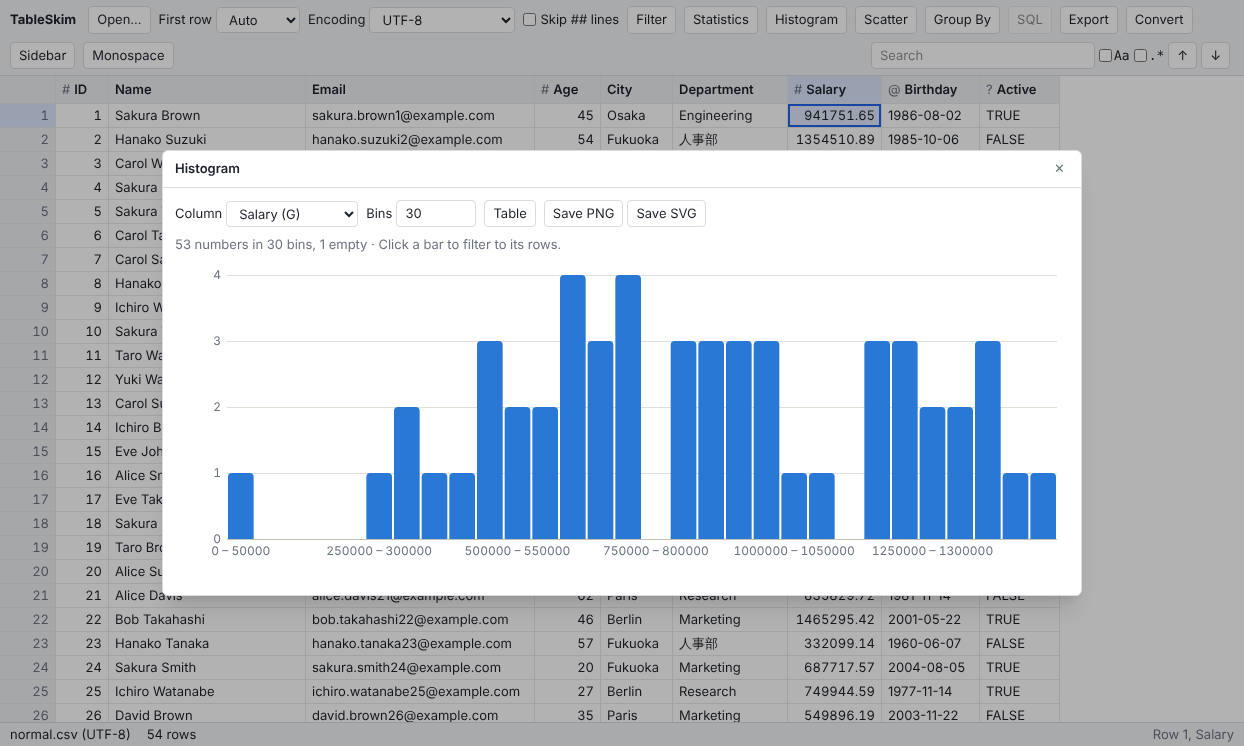
Save PNG and Save SVG save the chart as shown; the browser saves the file into its downloads. PNG is drawn at twice the size of the page, and SVG keeps lines and text sharp at any size.
How to read the charts and which one answers which question is explained in Charts and Group By.
Group By groups the rows of the view by the values of the key columns and computes aggregates (count, distinct, sum, mean, min, max) of other columns, as in the GUI. Tick each column's Key or Aggregate box and the aggregates to compute. The result opens as the sheet Group By, which a later Group By replaces. See Summarizing in a table: Group By.
In a column menu:
Hidden columns are left out of copies, exports and Group By; sorts, filters and searches are not affected, as in the GUI.
Format... in a column menu chooses how the column's numbers (thousands separators, decimal places) and dates are shown. Only the display changes: copies and exports keep the values. See Column types and formats.
The Monospace button shows the cells and the Content pane in a monospace font, which lines up fixed-width data such as sequences or codes. The choice is kept in the browser.
Excel workbooks and DuckDB / SQLite databases show one tab per sheet or table above the grid. SQL results and Group By results are added as sheets too.
For DuckDB, SQLite, Parquet and JSON files, the SQL button opens the SQL panel at the bottom.
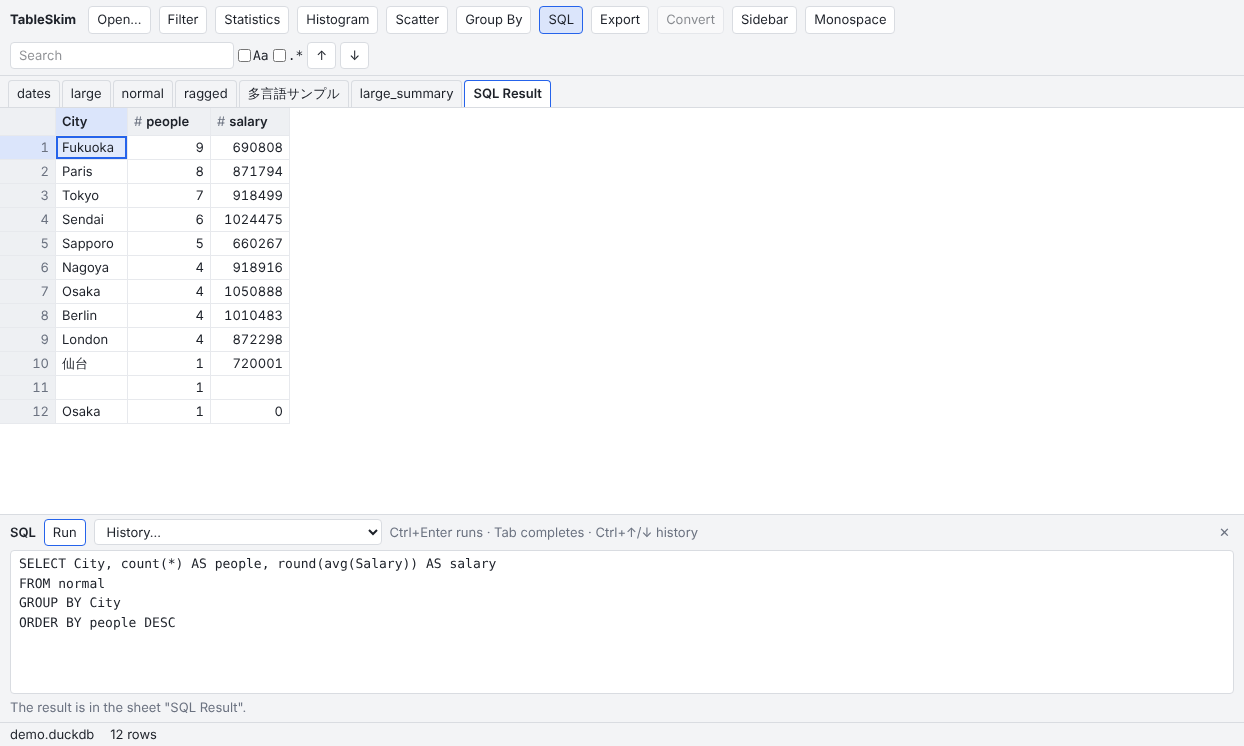
Type a query and press Run (Ctrl+Enter). The result opens as the sheet SQL Result; the next query replaces it, and a file opened again with other options runs the last query again. Tab completes table and column names, and Ctrl+↑ / Ctrl+↓ (or History...) bring back earlier queries. The history is kept in the browser, apart from the GUI's and the terminal UI's. See Running SQL for what can be queried.
## lines) and with each column given the narrowest type its values fit; sorts and filters are not applied. See Convert to Parquet / DuckDB.
Both run in the background with a row count and a Stop button. The file is written in the browser's memory and then saved by the browser into its downloads, named after the source file.
The file is read in place, piece by piece, and is never copied whole into memory. The rows of a text file are kept in memory once read, as in the GUI, so reading pauses at 100 MiB, 500 MiB, 1 GiB and then every 2 GiB of rows: Continue reading goes on, Stop here ends the table at the rows read. A browser gives a page much less memory than a program gets, at most 4 GiB, so very large text files are better converted to Parquet with the GUI or the terminal UI first; Parquet files, databases and Excel workbooks are read as needed.
The web app has the GUI's features except these:
| Key | Action |
|---|---|
Ctrl+O | Open a file |
Arrows, Page Up / Page Down, Home / End | Move the cursor |
Ctrl+Home / Ctrl+End | First / last row |
Shift + a movement key | Extend the selection |
Ctrl+A | Select everything |
Ctrl+C | Copy the selection as tab-separated text |
Enter, double click | Show the whole cell in the sidebar |
Ctrl+G | Go To |
Ctrl+F | Go to the search box |
Enter / Shift+Enter | In the search box: next / previous hit |
Ctrl+Shift+F | The Filter pane |
Enter | In a filter value: apply the filter |
Ctrl+Enter | In the SQL panel: run the query |
Tab | In the SQL panel: complete a name |
Ctrl+↑ / Ctrl+↓ | In the SQL panel: earlier / later queries |
Escape | Close a dialog or a menu; leave the search box |