On macOS, use Cmd wherever this manual says Ctrl.
# numbers, @ dates, ? booleans (see Column types and formats).
(filtered) after its name.
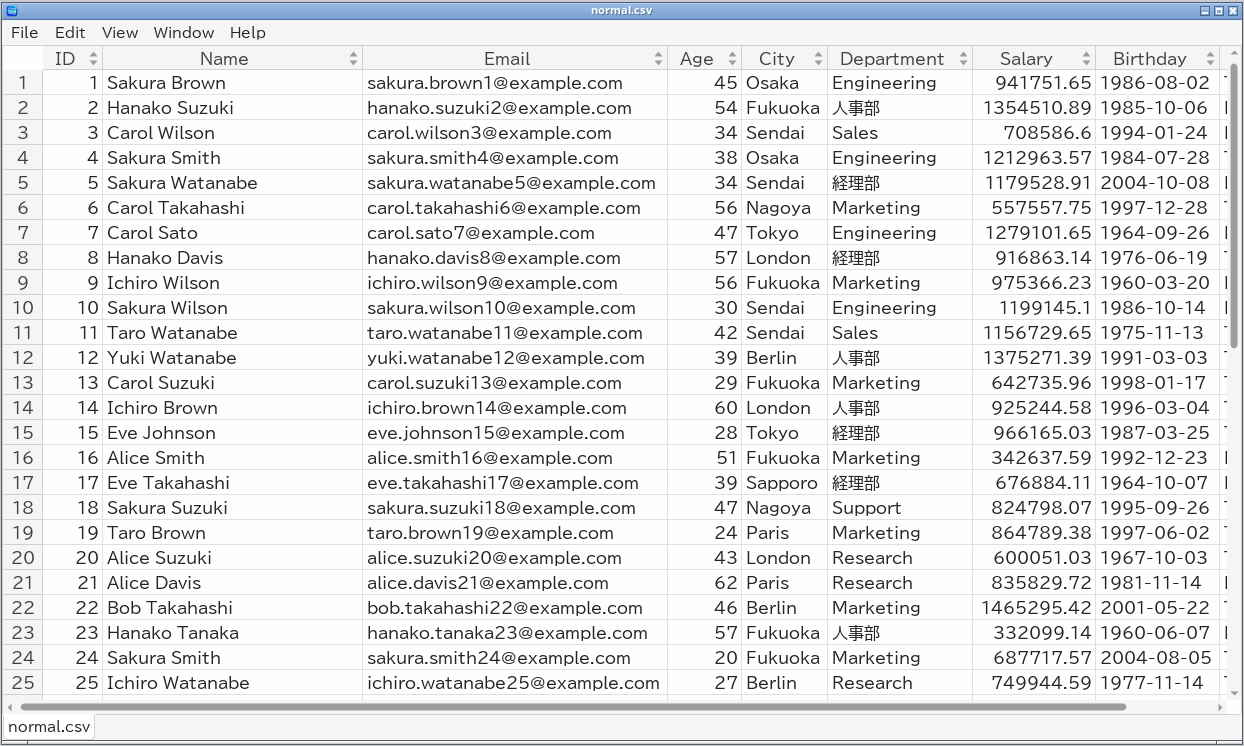
Each file opens in its own window. The Window menu lists the open windows so that you can switch between them.
Ctrl+O), or the Open... button of an empty window. The file dialog lists every supported format.
tableskim a.csv b.xlsx.
A file opened from a window that already shows one opens in a new window. File → Close (Ctrl+W) closes the window, File → Quit (Ctrl+Q) quits TableSkim.
Rows are read in the background: the table appears at once, cells that are not loaded yet are filled in as they arrive, and the window stays responsive.
Page Up / Page Down, Home / End.
Shift+click to select a range.
Edit → Copy (Ctrl+C) copies the selected cells as tab-separated text (TSV), which can be pasted into a spreadsheet. Hidden columns are left out. Tabs and line breaks inside a cell are replaced with spaces, and a cell that starts with a double quote is quoted so that it pastes back as it was. If some selected rows are not loaded yet, they are skipped and a message says how many rows were copied.
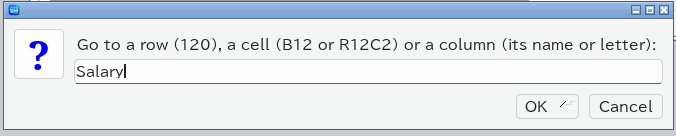
Edit → Go To... (Ctrl+G) jumps to:
120;
B12 or R12C2;
AB) or by its name (Salary). A column name is matched exactly first, then ignoring upper and lower case, and wins over a column letter.
View → Show sidebar shows or hides the sidebar. It also appears automatically when you use Find, Filter or Column Statistics. Drag its left edge to make it wider.
The Content pane shows the whole value of the selected cell, wrapped to the width of the pane. This is useful for long text. Double-click a cell to open it.
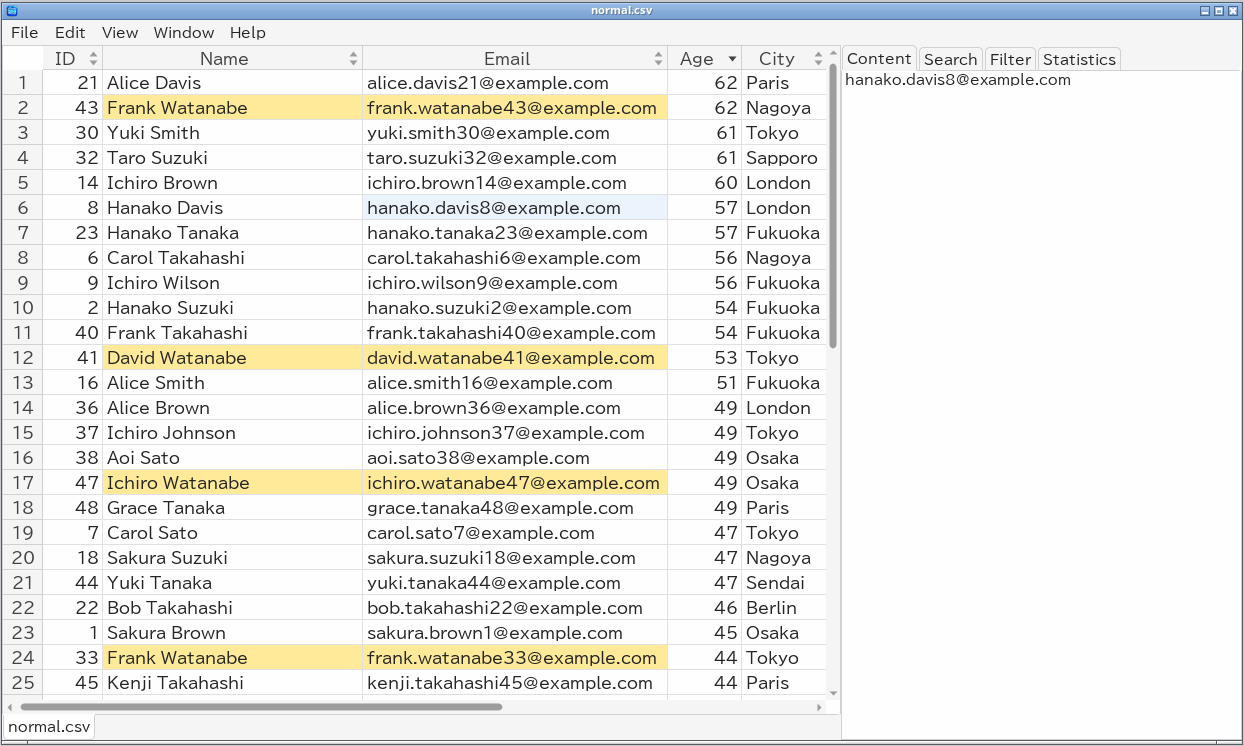
Click the sort button (the small arrows at the right of a column header) to sort by that column: the first click sorts in ascending order, the second in descending order, and the third restores the file order. The arrow in the header shows the current direction. Sorting by one column replaces any other sort.
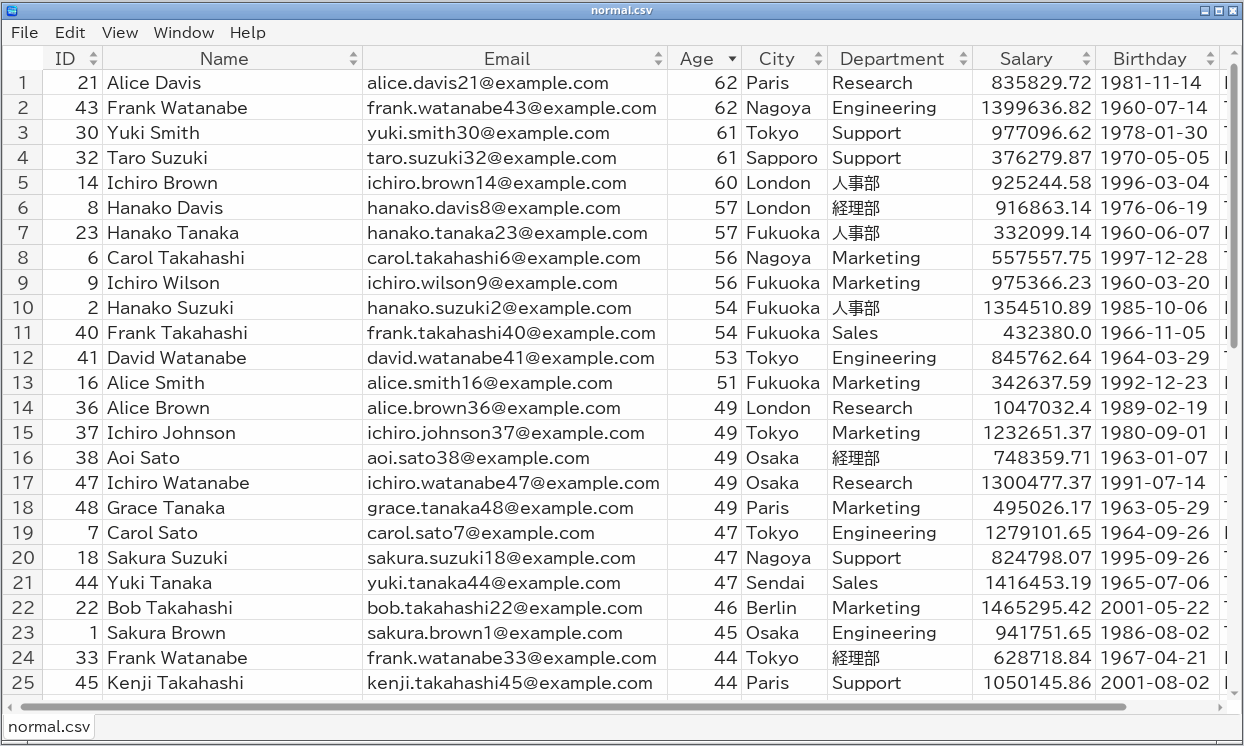
Right-click a column header for the column menu, which has Sort Ascending, Sort Descending and No Sort as well as filtering, statistics, histograms, hiding and freezing.
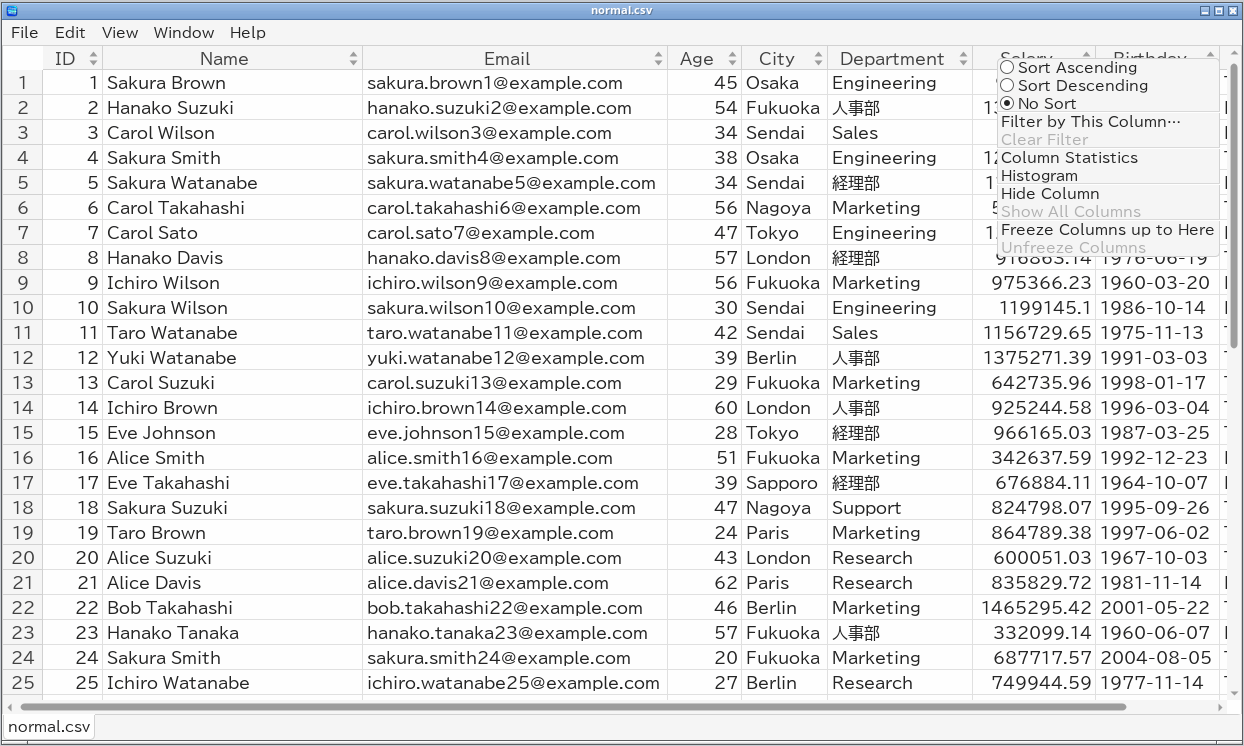
How values are compared (numbers, dates, text, empty cells) is explained in Sorting, Filtering, Searching and Statistics.
Chart selections are kept as Additional narrowing, ANDed with the conditions in the Filter pane even when Match: Any is selected. Editing those conditions keeps the chart selection. Click Additional narrowing (...) - Clear to remove only the chart selection; Clear removes both. Further chart selections narrow the remaining rows again.
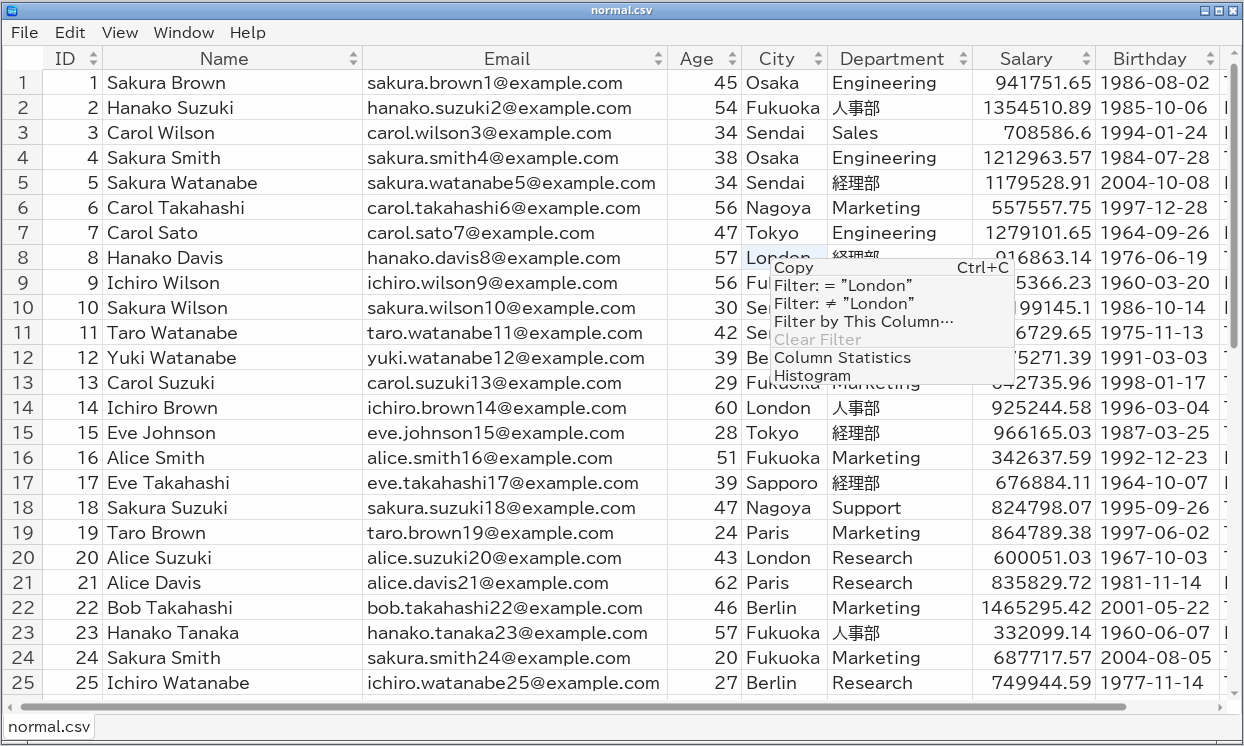
Right-click a cell and choose Filter: = "value" to show only rows with the same value in that column, or Filter: ≠ "value" to hide them. Each quick filter is added to the current filter as another condition.
Edit → Filter... (Ctrl+Shift+F), or Filter by This Column... in a column or cell menu, opens the Filter pane.
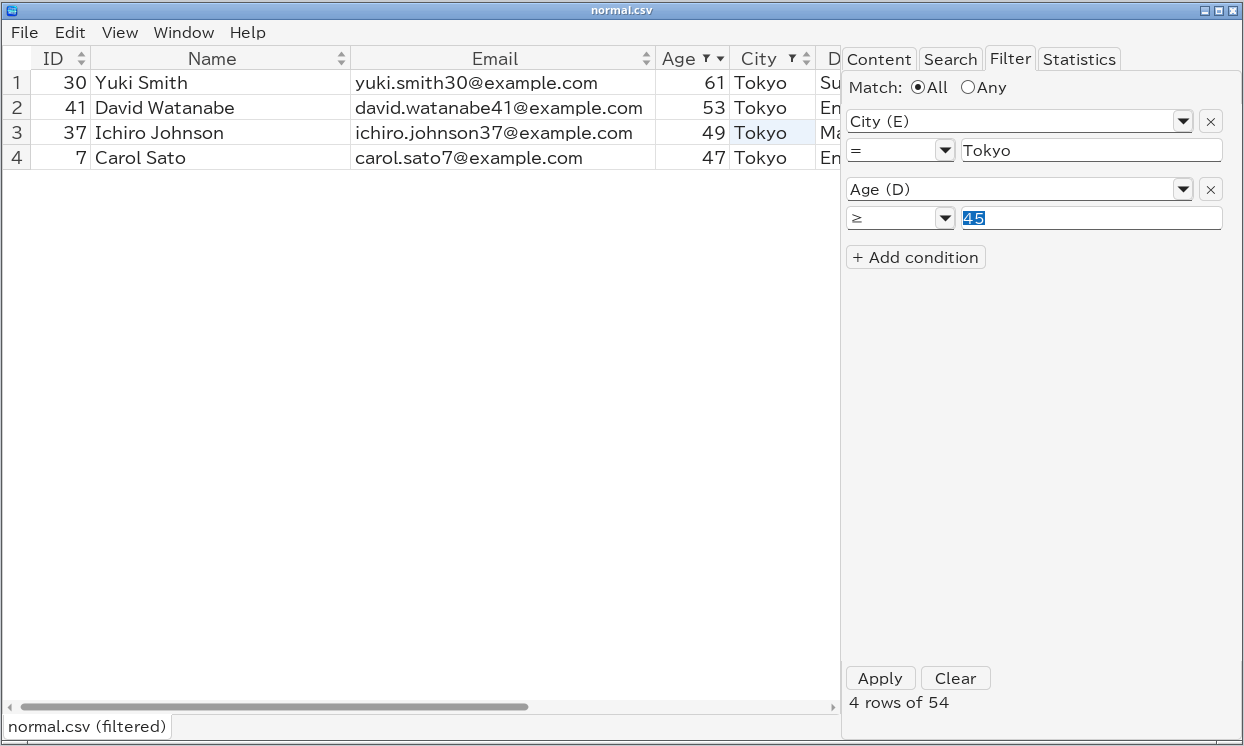
Enter in a value field) applies the filter. The line below shows the result, for example "4 rows of 54".
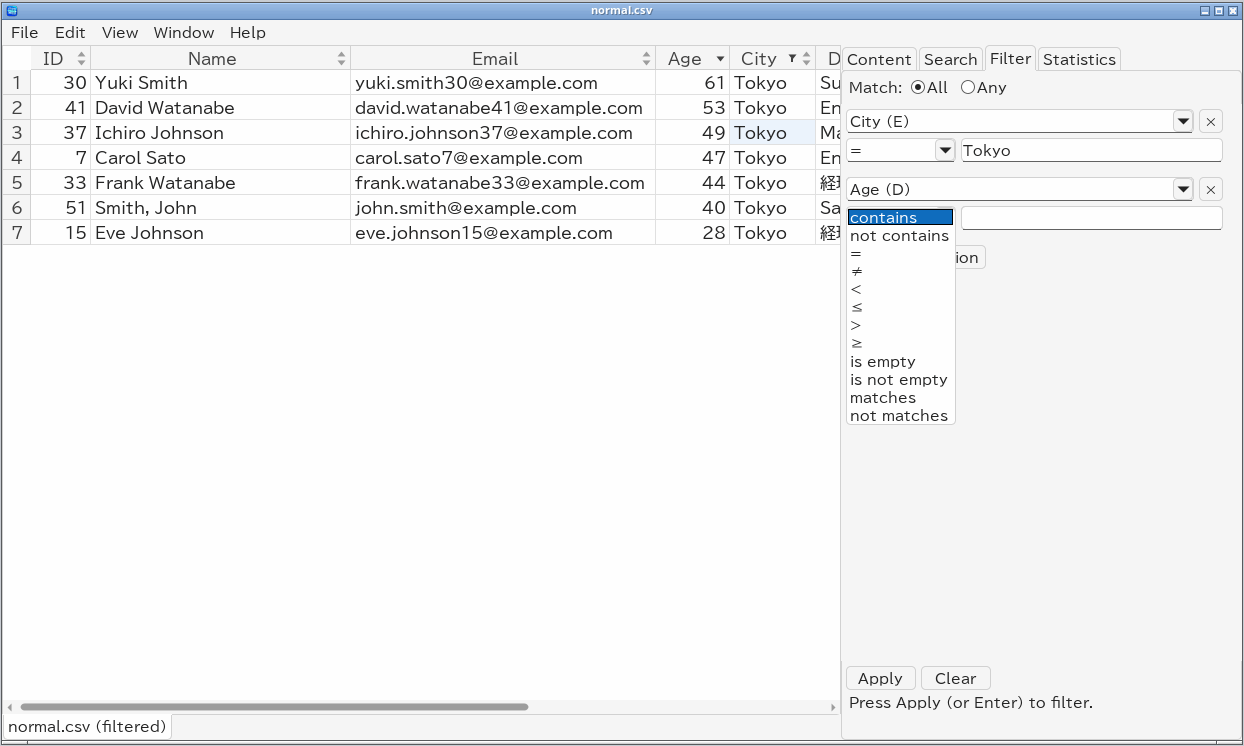
The operators are contains, not contains, =, ≠, <, ≤, >, ≥, is empty, is not empty, matches and not matches (regular expressions), is a number and is a date. Comparisons follow the type of each cell: numbers compare as numbers, dates as dates, and = 2024-01-31 matches any time on that day. See Sorting, Filtering, Searching and Statistics for the details.
Edit → Clear Filter, or Clear Filter in a column or cell menu, removes the filter.
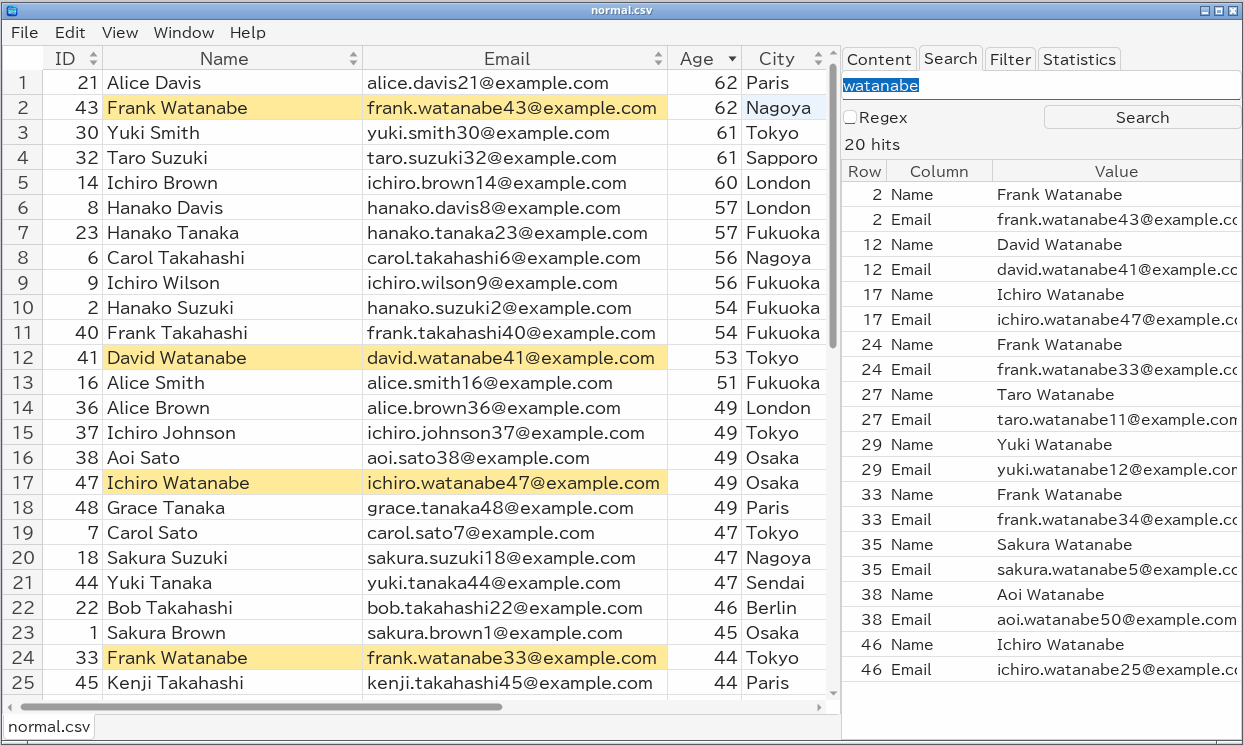
Edit → Find... (Ctrl+F) opens the Search pane. Type the text and press Enter or Search.
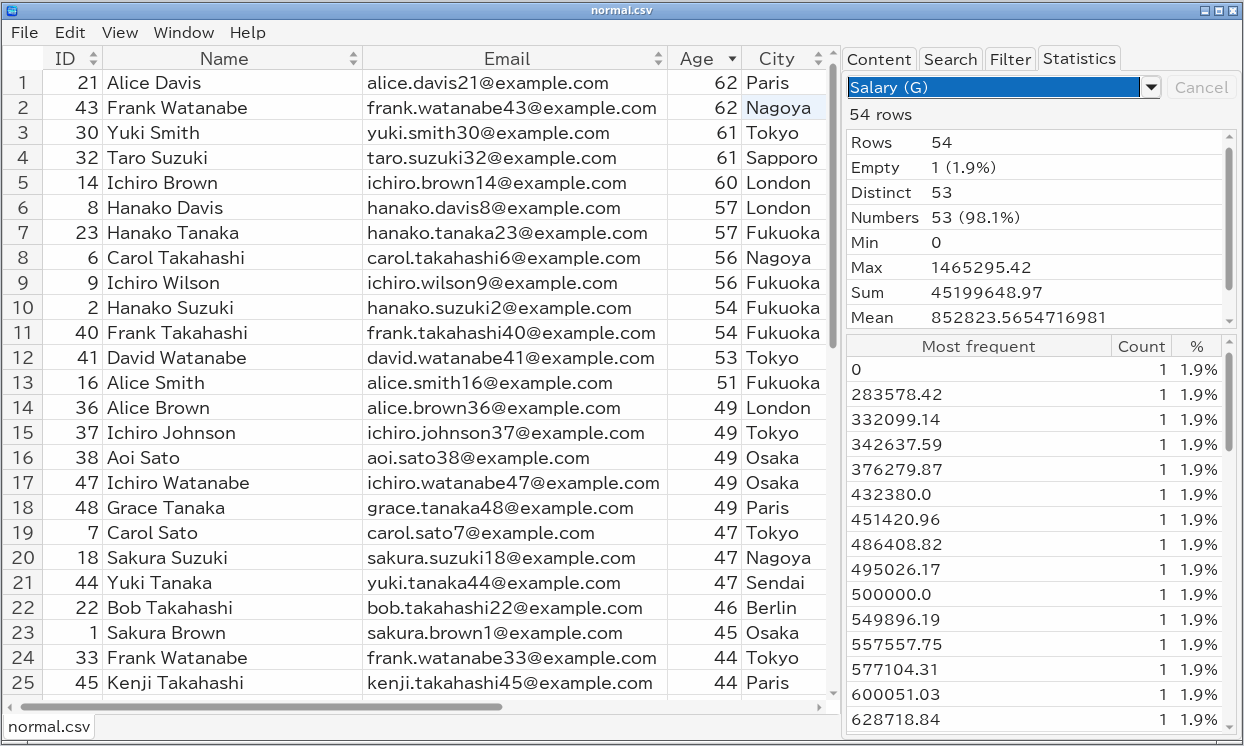
Edit → Column Statistics (Ctrl+Shift+I), or Column Statistics in a column or cell menu, opens the Statistics pane for the current column. Choose another column from the list at the top.
Charts and Group By shows, with examples, which chart to use and how to read it.
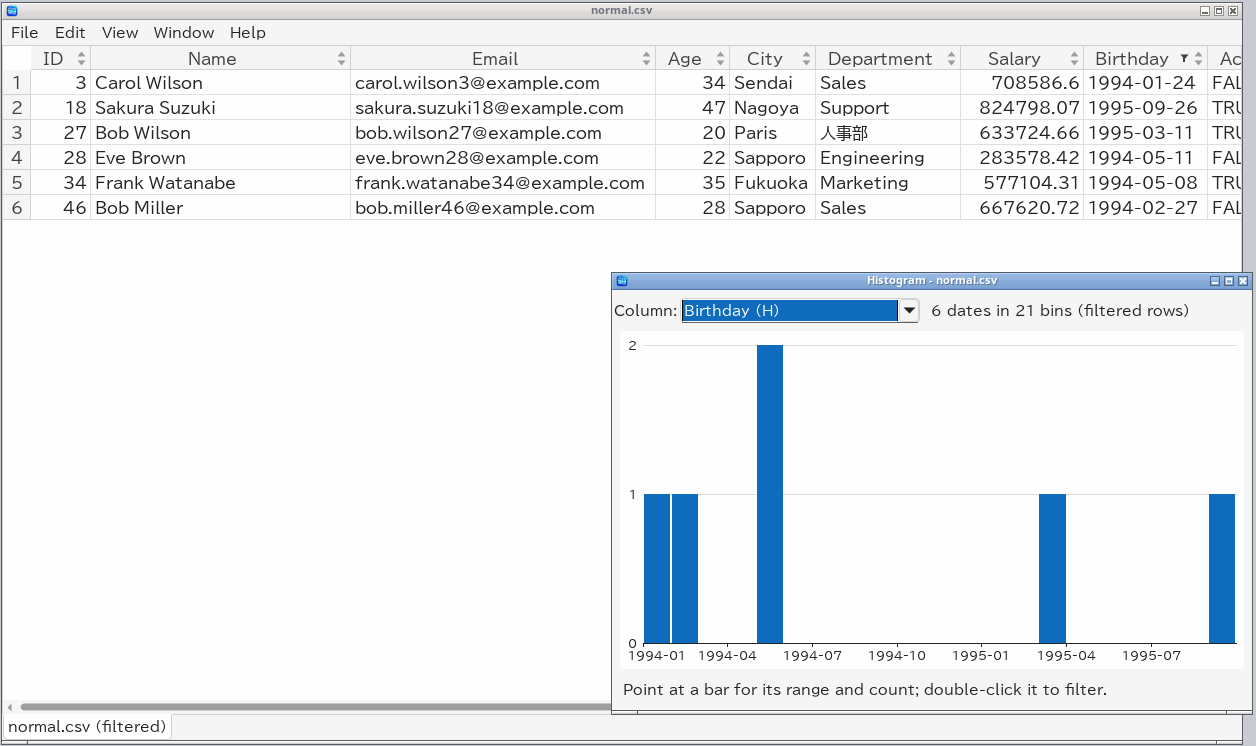
Edit → Histogram... (Ctrl+Shift+H), or Histogram in a column or cell menu, opens a histogram of the current column in a window of its own. Choose another column from the Column list at the top; the line next to it summarizes what was counted, for example "53 numbers in 30 bins, 1 empty".
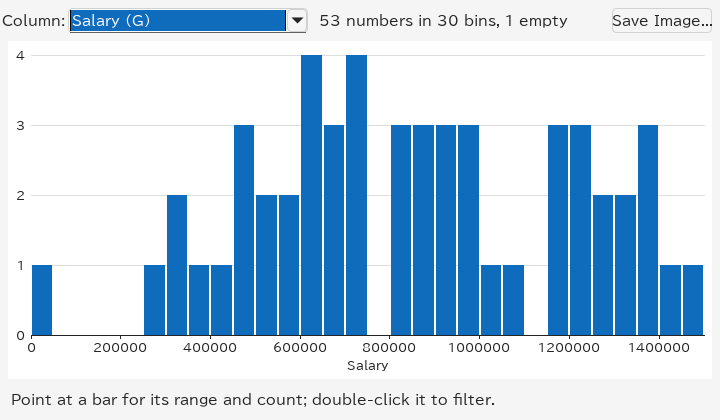
[600000, 650000): 4 (7.5%). A range includes its lower bound and excludes its upper bound ([ and )), except the last bar of numbers, which includes both ([1450000, 1500000]).
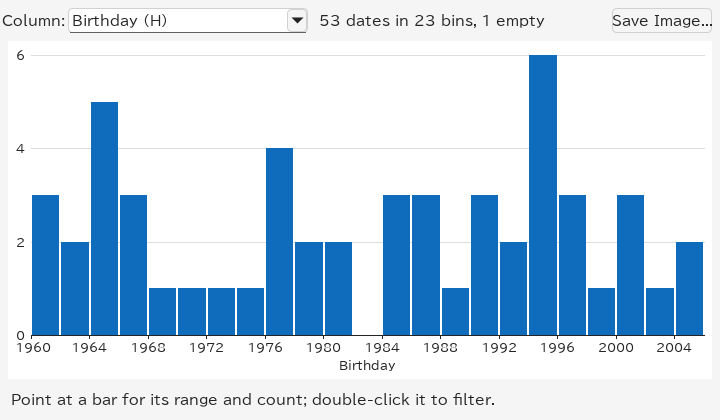
The histogram always follows the current view of the sheet: changing the filter, in the Filter pane or anywhere else, recomputes it, and the summary says "(filtered rows)". Below, the 1994–1995 bar was double-clicked: the sheet now shows those six rows and the histogram shows them in monthly bins.
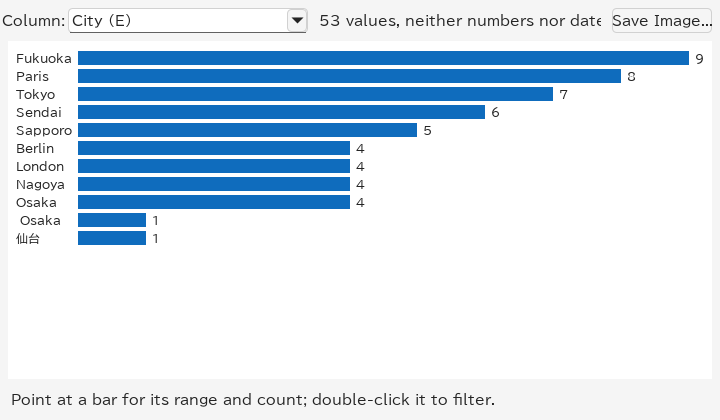
For a text column, each bar is one value; double-clicking it filters the sheet to that value.
How bins are chosen is described in Sorting, Filtering, Searching and Statistics.
Save Image... writes the chart as a PNG or SVG file (by the extension of the name, or the type chosen in the dialog). The image is the chart as shown, at its size in the window, with the column name under the axis.
Edit → Scatter Plot... (Ctrl+Shift+P), or Scatter Plot in a column or cell menu, plots two columns against each other in a window of its own. If two or more columns are selected, the first and last are X and Y. Otherwise TableSkim picks columns holding numbers or dates (judged by the rows around the current cell): Y is the current column, or the nearest such column, and X the nearest such column to its left (or, if there is none, to its right). Choose other columns from the X and Y lists, and the kind of plot from Show:
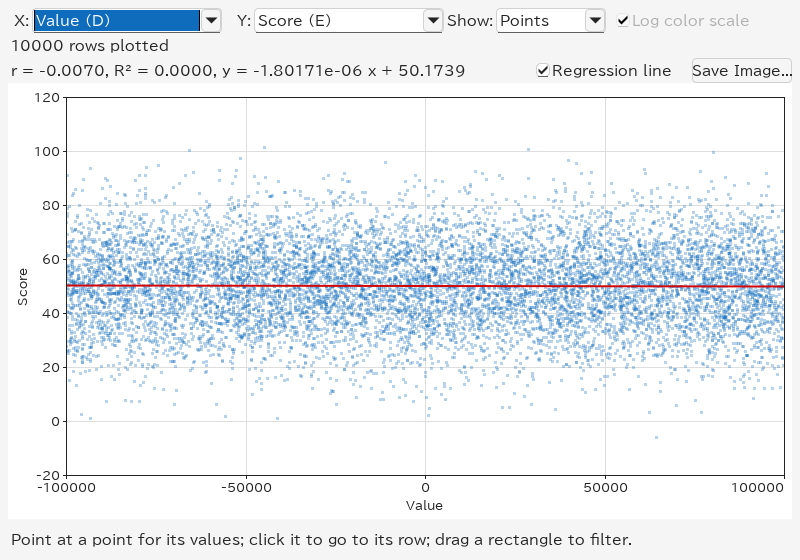
Y must hold numbers or dates. X may hold numbers or dates too, or text (see Text on X: box plots below). Rows where either value is empty or of another kind are left out and counted as "skipped" in the summary.
The line under the summary shows how closely the columns are related, for example r = 0.0945, R² = 0.0089, y = 2641.23 x + 744351: Pearson's correlation coefficient r (from −1 to 1), its square R², and the least-squares line. They are computed over every row plotted, not only the sample of points. Regression line draws that line on the plot. The equation is left out when a column holds dates, whose values would be in microseconds.
x [-30000, -25000) × y [60, 65): 22 rows (0.2%); double-click it to filter the sheet to the rows of that cell.
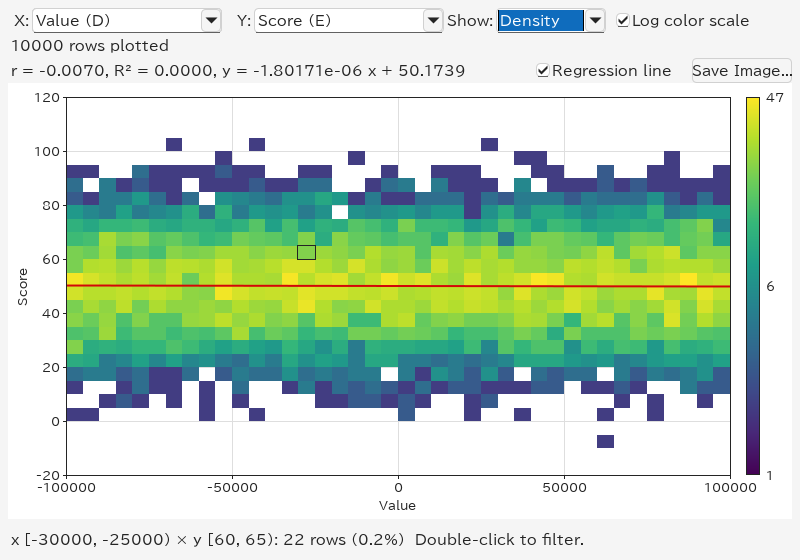
Like the histogram, the plot follows the current view of the sheet, so after filtering it is drawn again for the rows left. Edit → Clear Filter goes back to all rows. See Sorting, Filtering, Searching and Statistics for the details.
When the X column holds text (such as a city or a department), each of its values is a category with a column of its own: the 30 most frequent values, most frequent first, and (other) for the rest. Show then switches to Box Plot (it is available only then):
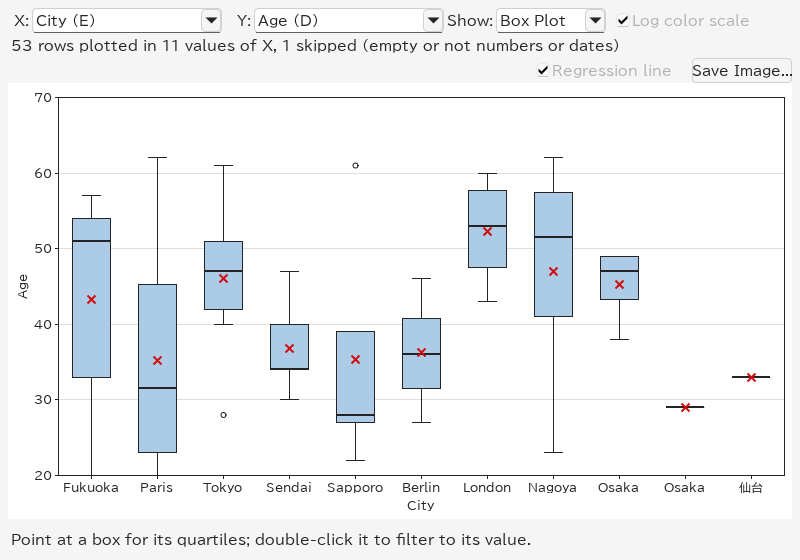
There is no correlation or regression line for categories, and no rectangle to drag.
Save Image... writes the plot as a PNG or SVG file, as shown: the kind of plot, the colour scale, the regression line and the axis titles (the column names). The type follows the extension of the name (.png or .svg), or the type chosen in the file dialog. SVG files keep lines and text sharp at any size; the points of a scatter plot are an image inside them.
See also Charts and Group By for worked examples.
Edit → Group By... (Ctrl+Shift+G), or Group By… in a column menu, counts the rows of the current sheet by the values of some columns, like a pivot table or SQL's GROUP BY, and shows the result in a new sheet named Group By.
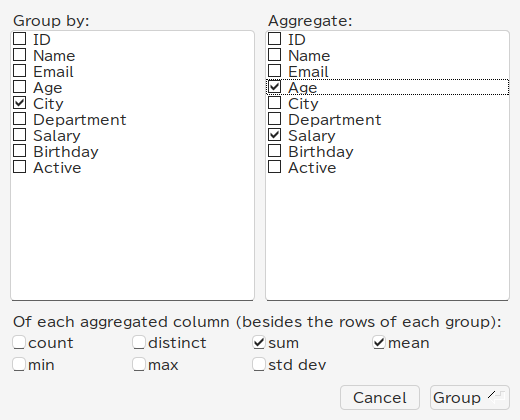
The result has one row per group, in sort order of the group's values: the group columns, count (the rows of the group), and a column such as Salary sum for each aggregated column and function. It covers the rows of the current view, so it follows the filter.
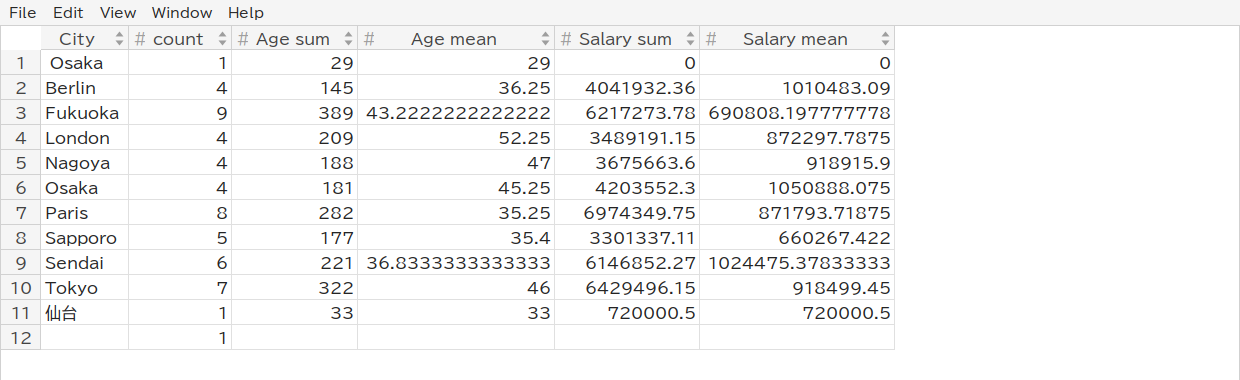
The Group By sheet can be sorted, filtered, exported and grouped again like any other. Grouping again replaces it. It is a snapshot: it does not change when the original sheet does, but stays when the file is reloaded. Empty cells form a group of their own; how values are compared is described in Sorting, Filtering, Searching and Statistics.
Right-click a column header and choose Hide Column. If several columns are selected and you right-click one of them, Hide Columns hides them all. View → Show All Columns (or Show All Columns in the column menu) shows them again.
Hidden columns are skipped when moving the cursor, copying and exporting. They still take part in sorting, filtering and statistics.
Right-click a column header and choose Freeze Columns up to Here: that column and all columns to its left stay in place when you scroll sideways. Unfreeze Columns in the column menu, or View → Freeze Columns, turns it off. At least one column must remain unfrozen.
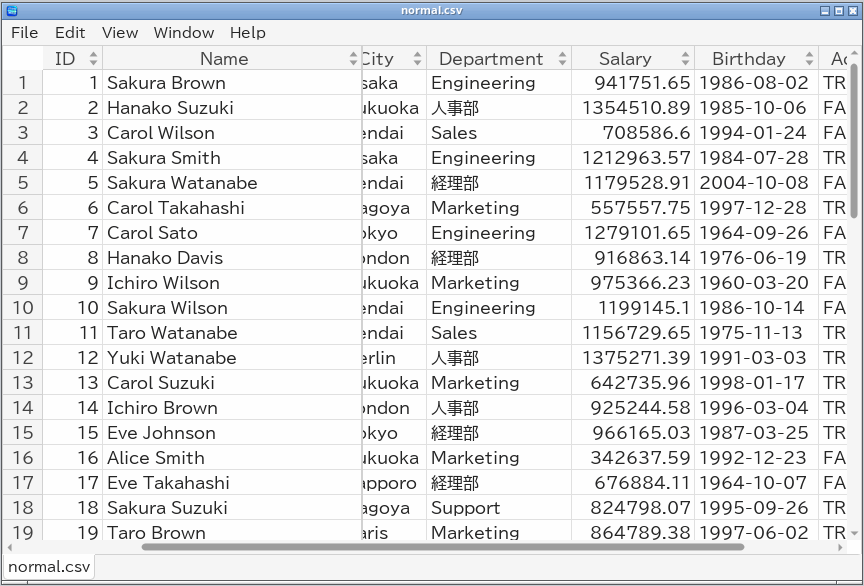
TableSkim looks at the first 1,000 rows read to tell what each column holds, and marks the header: # for numbers, @ for dates and date-times, ? for booleans (TRUE / FALSE). Text and mixed columns have no mark. Text cells count as what they read as, so a CSV column of 42 and 3.5 is a number column. A few stray values (a - among numbers) do not change the kind, as long as 90% of the values agree.
Format in the column header menu changes how the column shows its values; the first line of the submenu shows its type, for example "Type: Number (whole numbers)":
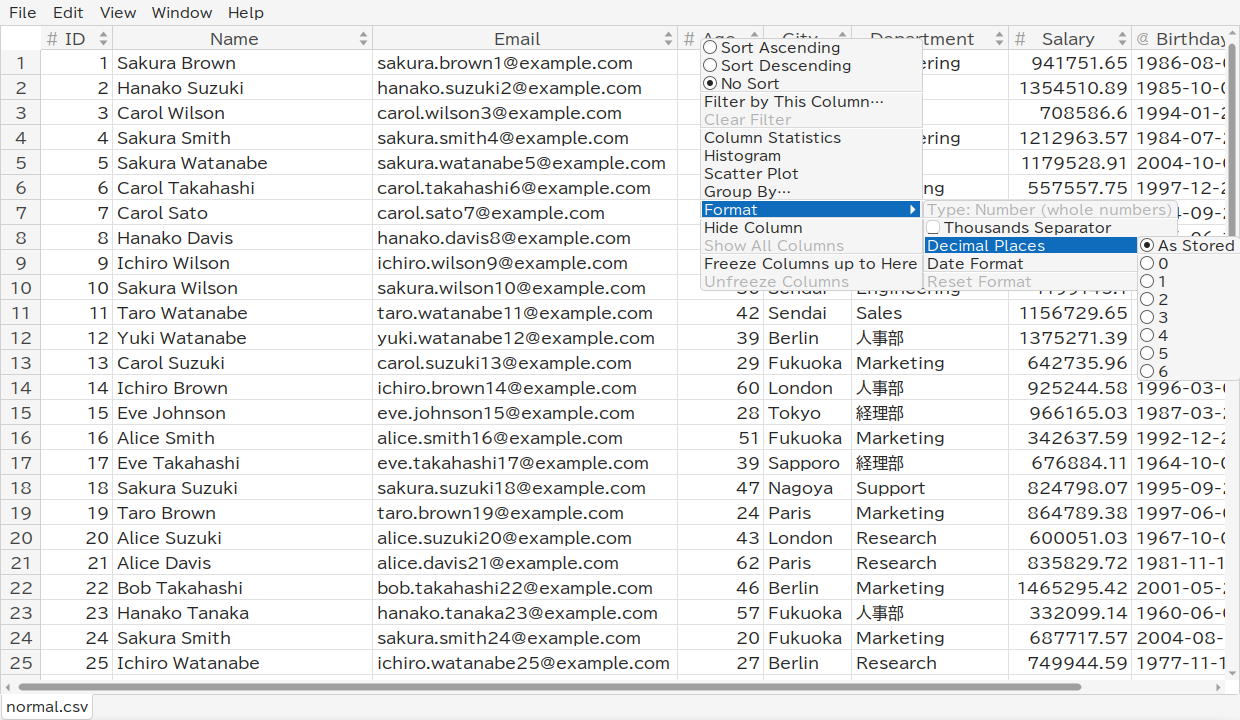
1234567.5 is shown as 1,234,567.5.
1234.5678 with 2 places is 1234.57).
2024-01-31, 2024/01/31, 01/31/2024, 31/01/2024, 2024年1月31日 or Jan 31, 2024. A time of day stays as it is.
If several columns are selected and you right-click one of them, the change applies to all of them. Numbers and dates held as text are formatted too. Only the display changes: sorting, filtering, copying and exporting use the values as they are. Formats belong to the sheet in this window and are kept when the file is reloaded.
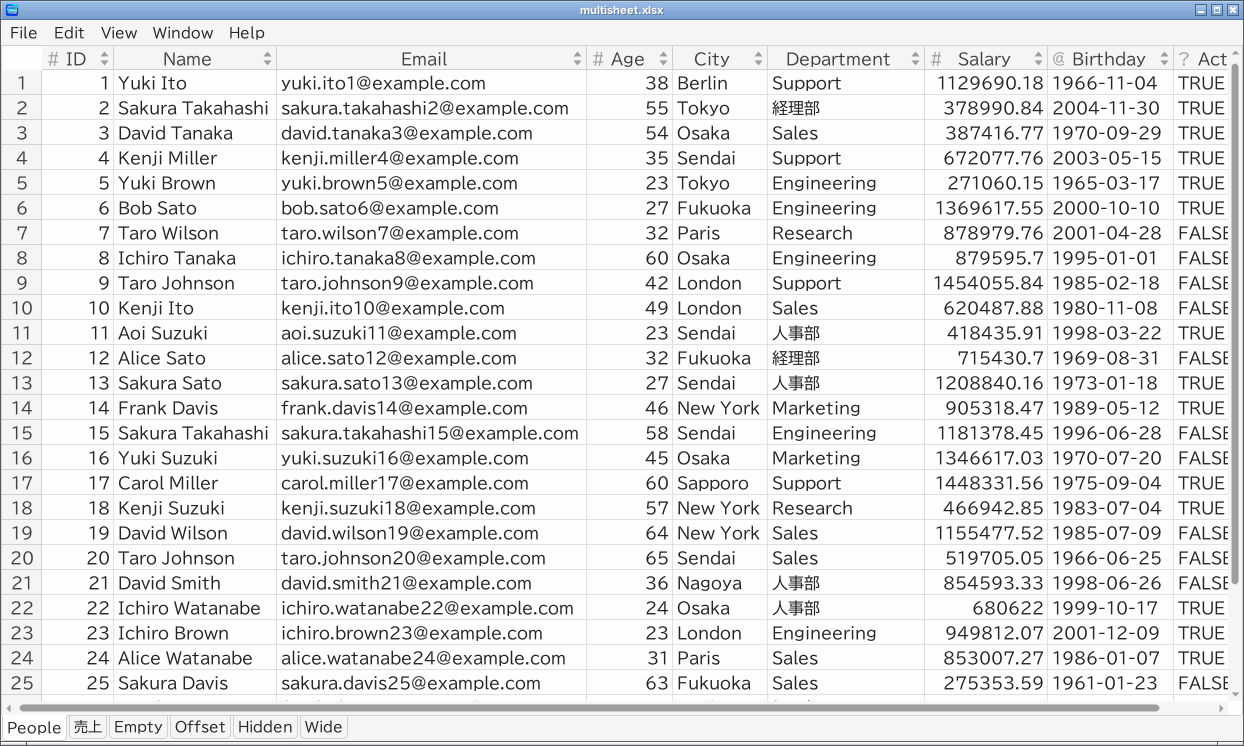
Excel workbooks and databases show one tab per worksheet, table or view at the bottom of the window. Click a tab to switch. Each sheet keeps its own sort, filter, hidden and frozen columns.
For DuckDB, SQLite, Parquet and JSON files, Edit → Run SQL... (Ctrl+E) opens the SQL window. Type a query and press Run (Ctrl+Enter); the result appears as a new sheet named SQL Result.
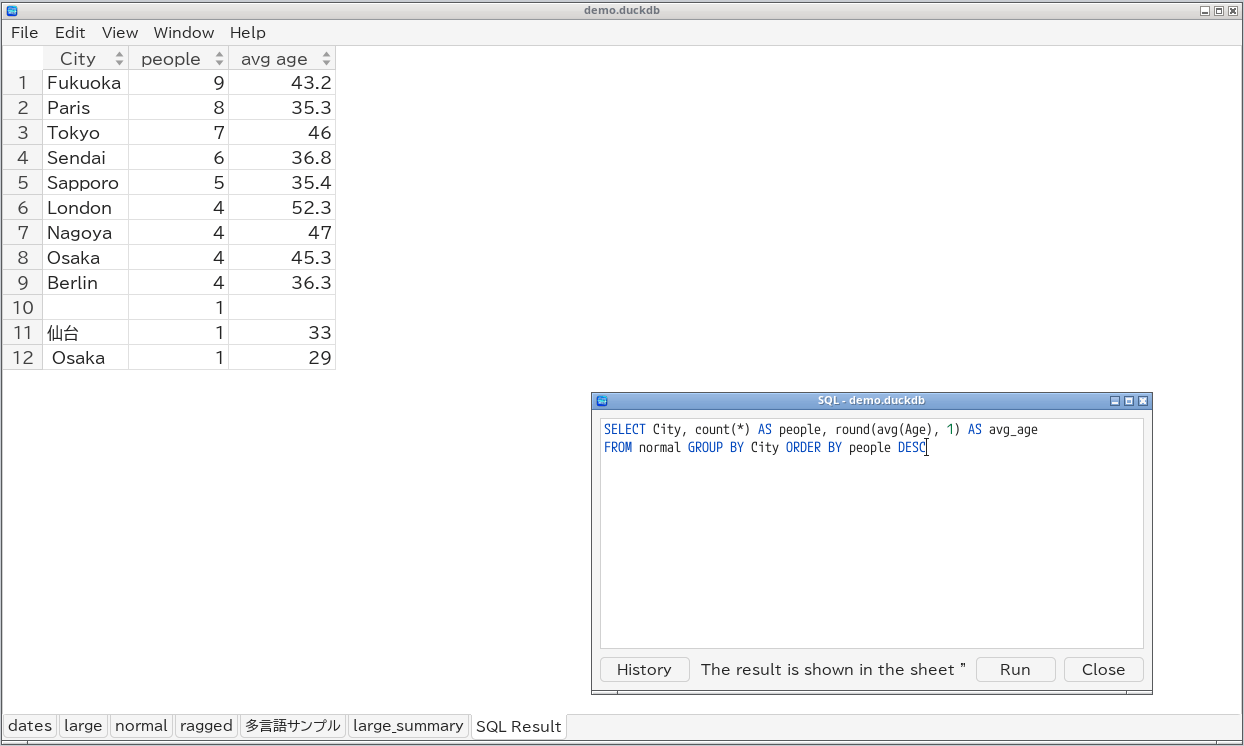
The SQL window has a history (History, Ctrl+Up / Ctrl+Down) and completion (Tab). See Running SQL for details.
Ctrl+Shift+E) saves the current sheet as shown (sorted, filtered, without hidden columns) to CSV, TSV, Excel or Parquet.
Both run behind a progress dialog with a Cancel button. See Exporting and Converting.
Cells of CSV / TSV and Excel files can be changed in edit mode only: Edit → Edit Mode (Ctrl+Shift+M) turns it on and off, and the title shows [Editing]. Then F2, Enter, typing or a double click edits a cell, Delete clears the selected cells, Edit → Paste (Ctrl+V) pastes tab-separated text, Edit → Undo / Redo take changes back, and File → Save (Ctrl+S) or File → Save As... (Ctrl+Shift+S) writes them. Edited cells are green until saved. See Editing Cells.
Ctrl+Shift+T) keeps showing the end of a file that grows, like tail -f: the file is checked twice a second (whether or not Auto Revert is on), and the current cell moves to the last row whenever rows are added. For CSV / TSV files that are not compressed (in UTF-8 or Shift_JIS), only the appended lines are read, so even a large log file keeps up; a line being written is shown once it ends. Other files, and files that were rewritten rather than appended to, are reloaded. A sorted or filtered sheet sorts and filters the new rows too. Choose the item again to stop following.
After a reload, a SQL result sheet is computed again by running the last query. With unsaved edits, Revert asks before dropping them, and Auto Revert waits (the title shows (changed on disk) if the file changes).
The View menu:
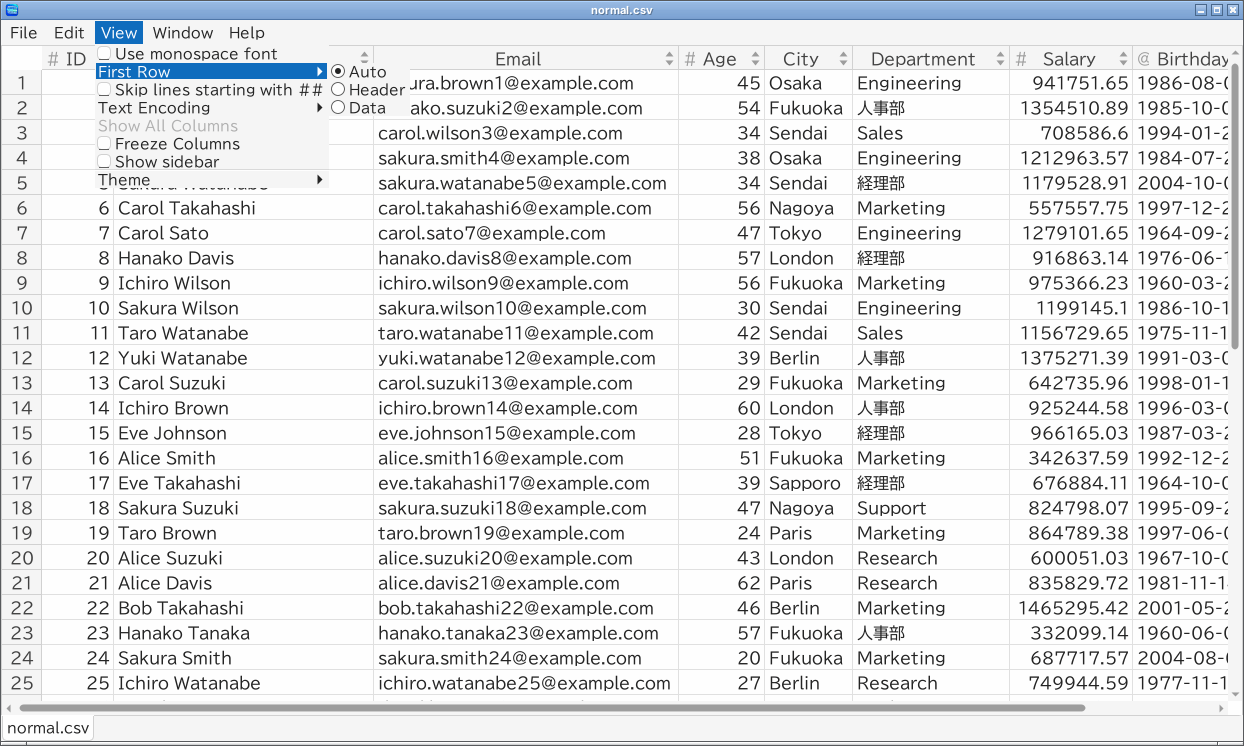
| Item | Effect |
|---|---|
| Use monospace font | Show cells in a monospace font |
| First Row | Auto (header if it looks like one), Header or Data (CSV / TSV / Excel) |
| Skip lines starting with ## | Drop ## lines of text files (on by default for VCF) |
| Text Encoding | UTF-8, UTF-16LE, UTF-16BE or Shift_JIS (CP932), for CSV / TSV |
| Show All Columns | Show hidden columns again |
| Freeze Columns | Freeze the columns up to the selected one, or unfreeze them |
| Show sidebar | Show or hide the sidebar |
| Theme | Fluent, Basic, Plastic, GTK+, Gleam or Oxy look |
Items that do not apply to the current file (for example the header option for a Parquet file) are disabled.
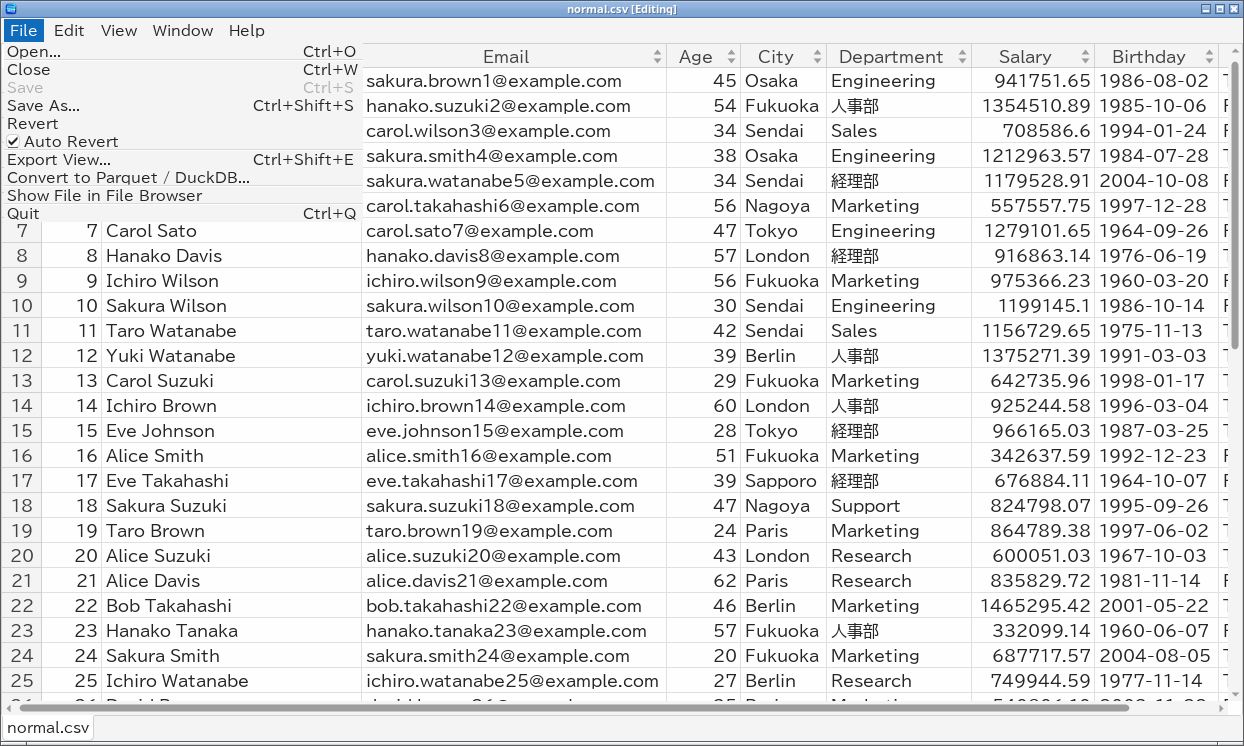
| File menu | Shortcut |
|---|---|
| Open... | Ctrl+O |
| Open Recent | |
| Close | Ctrl+W |
| Save (edit mode) | Ctrl+S |
| Save As... (edit mode) | Ctrl+Shift+S |
| Revert | |
| Auto Revert | |
| Follow End of File | Ctrl+Shift+T |
| Export View... | Ctrl+Shift+E |
| Convert to Parquet / DuckDB... | |
| Show File in File Browser | |
| Quit (in the application menu on macOS) | Ctrl+Q |
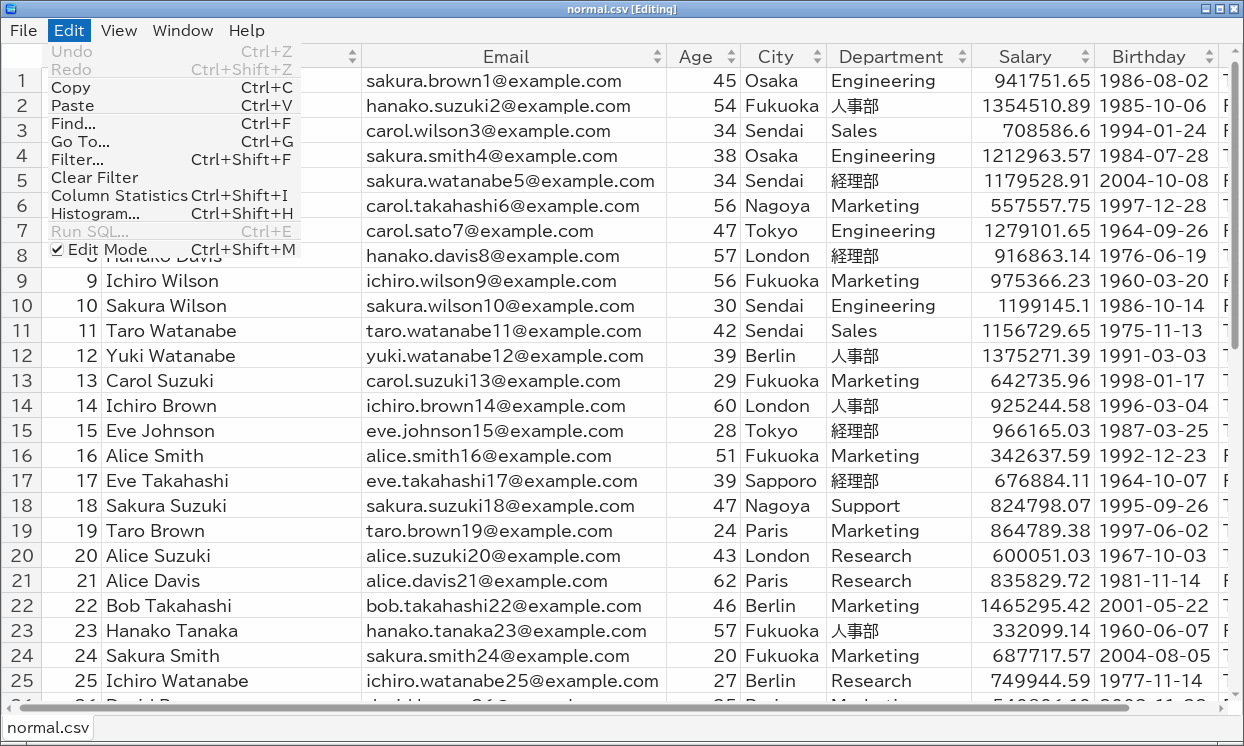
| Edit menu | Shortcut |
|---|---|
| Undo (edit mode) | Ctrl+Z |
| Redo (edit mode) | Ctrl+Shift+Z |
| Copy | Ctrl+C |
| Paste (edit mode) | Ctrl+V |
| Find... | Ctrl+F |
| Go To... | Ctrl+G |
| Filter... | Ctrl+Shift+F |
| Clear Filter | |
| Column Statistics | Ctrl+Shift+I |
| Histogram... | Ctrl+Shift+H |
| Scatter Plot... | Ctrl+Shift+P |
| Group By... | Ctrl+Shift+G |
| Run SQL... | Ctrl+E |
| Edit Mode | Ctrl+Shift+M |
| Help menu | Shortcut |
|---|---|
| User Manual | F1 |
| About... |
Help → User Manual (F1) opens this manual in a window of its own, in Japanese if that is the language of the system and in English otherwise; the list at the top right switches the language. Back / Forward (Alt+Left / Alt+Right) return to pages seen before, and Contents goes to the table of contents. The manual is built into TableSkim, so it works offline.
Help → About... shows the version and the licenses of the bundled third-party software and fonts.