TableSkim is distributed as native packages with all libraries built in, so nothing else needs to be installed.
| Platform | Packages |
|---|---|
| Linux | .deb (Ubuntu 24.04 or later), .rpm (RHEL 10 and its rebuilds), or a .zip for any distribution |
| macOS | .dmg disk image or .zip containing TableSkim.app |
| Windows | Installer (.exe) or .zip |
The .deb and .rpm packages are built on Ubuntu 24.04 and Rocky Linux 10 and install only on distributions at least as new. For other or older distributions (glibc 2.28 or later: RHEL 8, Debian 10, Ubuntu 20.04 and newer), use one of the Linux ZIPs, which need no installation: unpack one anywhere and run bin/tableskim in it.
| ZIP | Contents |
|---|---|
tableskim-<version>-Linux-x86_64.zip | GUI (Wayland and X11) and terminal UI |
tableskim-<version>-Linux-x11-x86_64.zip | GUI for X11 only, which needs no Wayland libraries, and terminal UI |
tableskim-tui-<version>-Linux-x86_64.zip | Terminal UI only, for servers without a desktop |
The macOS app is not signed with a developer certificate, so macOS asks for your permission the first time: Control-click (right-click) TableSkim.app and choose Open, or allow it under System Settings → Privacy & Security. If macOS says the app is damaged, remove the download mark in a terminal:
xattr -dr com.apple.quarantine /Applications/TableSkim.app
The web app is tableskim-<version>-web.zip: a folder of static files to put on a web server, which runs TableSkim in the browser of anyone who opens it. See Using the Web App.
To build TableSkim yourself, see the Building section of the README.
tableskim command on each platform.deb and .rpm packages install the tableskim command and a desktop entry, so TableSkim also appears in the application menu. A ZIP has the command in bin/; link it into your PATH to use it from anywhere.
PATH:
ln -s /Applications/TableSkim.app/Contents/MacOS/TableSkim /usr/local/bin/tableskim
TableSkim.exe is the GUI application (it does not open a console). For the terminal UI use tableskim-tui.exe, which is installed next to it and runs in the terminal it is started from.
The manual comes with TableSkim. In the GUI, open it with Help → User Manual (F1). It is also installed as HTML pages for a web browser, which is handy when you use the terminal UI:
| Platform | Location |
|---|---|
| Linux | /usr/share/doc/tableskim/html/README.html (ZIP: share/doc/tableskim/html/README.html) |
| macOS | The Manual folder next to TableSkim.app in the .dmg or .zip |
| Windows | Manual\README.html in the installation folder; the installer also adds TableSkim User Manual to the Start menu |
tableskim [options] [files...]
tableskim opens the GUI. Each file given on the command line opens in its own window. Without a file, an empty window with an Open... button appears.
tableskim starts the terminal UI: on Linux when neither DISPLAY nor WAYLAND_DISPLAY is set, and on macOS in an SSH session. -t / --tui starts the terminal UI even when a display is available.
You can also open files from the GUI with File → Open... (Ctrl+O), and on macOS by dropping files on the application icon or using Open With in the Finder.
tableskim sales.xlsx               # GUI (or TUI without a display)
tableskim a.csv b.parquet          # two GUI windows
tableskim -t data.csv.gz           # terminal UI
tableskim --encoding cp932 old.csv # read a Shift_JIS CSV file
| Option | Description |
|---|---|
-t, --tui | Use the terminal UI even if a graphical display is available |
--encoding <name> | Encoding of CSV / TSV files: auto (default), utf-8, utf-16le, utf-16be or cp932 (shift_jis) |
--header <when> | Whether the first row of CSV / TSV files and Excel sheets holds the column names: auto (default), yes or no |
--log <file> | Write log messages to a file |
-v, --verbose | Enable verbose (debug) logging |
-V, --version | Show version information and exit |
-h, --help | Show the list of options and exit |
The terminal UI writes log messages only with --log, because they would otherwise be drawn over the screen.
--summary and --head print a summary of each file to standard output and exit, without a window, for a quick look from a script, a pipeline or an AI agent. Any file TableSkim can open works, compressed CSV files included.
tableskim --summary data.xlsx               # columns, statistics, first 10 rows
tableskim --head 20 data.csv.gz             # columns and the first 20 rows
tableskim --summary --format json db.duckdb # the same as JSON
tableskim --summary --sheet Sales book.xlsx # one sheet only
For each sheet, the summary has:
--summary: each column's statistics over every row, as in the statistics panel: empty cells, distinct values, minimum, maximum, mean, standard deviation and the five most frequent values. DuckDB and Parquet files count them in the database; other files are read once, row by row, without keeping the rows in memory.
--summary, N with --head N.
The first row of a CSV / TSV file or an Excel sheet is taken as the column names when it looks like a header, as in the windows (--header, above).
| Option | Description |
|---|---|
--summary | Print the columns, their types and statistics, and the first rows |
--head <N> | Print the columns and the first N rows (with --summary: N rows instead of 10) |
--format <format> | markdown (default) or json |
--sheet <name> | Only this sheet (may be repeated) |
--scan-rows <N> | Compute the statistics over the first N rows only |
Markdown cells are cut at 80 bytes. JSON keeps every value: numbers and booleans as such, dates and date-times as ISO text, empty cells as null. Each file is an object with file, encoding (text files) and sheets; each sheet has name, rows, rows_exact, columns (name, type, stats) and head, an array of rows. Several files make an array of objects. When a file or a sheet cannot be read, its object has an error, the error is also written to standard error, and the exit status is 1.
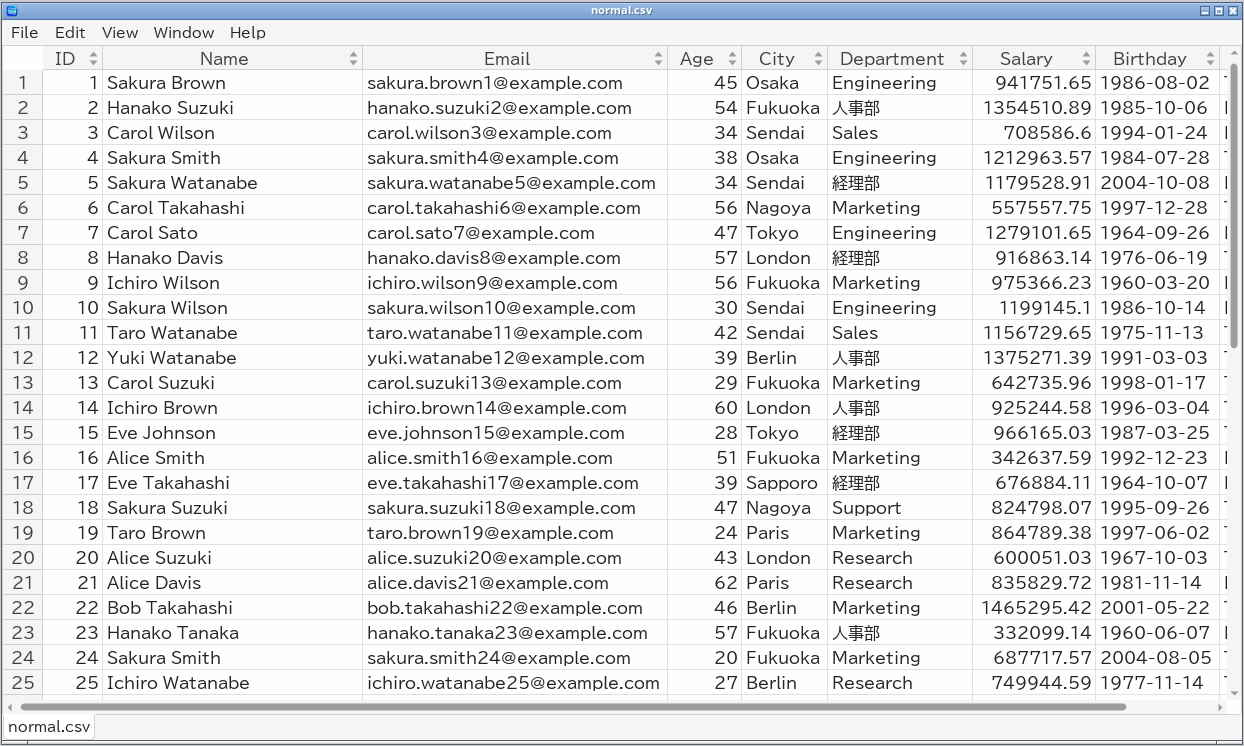
The window shows the table with row numbers on the left and column headers on top. Rows appear as soon as they are read; you can scroll, sort and search while a large file is still loading.
The first row of a CSV / TSV file or an Excel sheet is taken as the column names when it looks like a header: every cell is text, none is empty, and no two are the same. Otherwise it is shown as data, and the columns are named A, B, C, ... like a spreadsheet. If the guess is wrong, choose View → First Row → Header or Data (H in the terminal UI switches between the guess and the other choice; --header decides on the command line). Parquet files and databases always use their own column names.
Continue with Using the GUI or Using the Terminal UI.