TableSkim draws charts of the rows you are looking at and summarizes them in tables, without a spreadsheet or a script. This page shows, with examples, which tool answers which question, how to read the result, and how to go from a chart to the rows behind it. The examples use the demo files normal.csv (54 people; its first row is taken as the header) and large.parquet (10,000 rows).
| Question | Tool | GUI | TUI |
|---|---|---|---|
| What values does a column hold, and how many of each? | Histogram | Edit → Histogram... | B |
| Are two number (or date) columns related? | Scatter plot, density | Edit → Scatter Plot... | M |
| How does a number differ between groups? | Box plot | Scatter Plot, text on X | M |
| How many rows, and what totals or averages, per group? | Group By | Edit → Group By... | A |
| Minimum, maximum, mean of one column? | Column statistics | Edit → Column Statistics | S |
Every tool works on the current view: the rows left by the filter. So you can filter first (for example to one year) and then chart or group just those rows; the charts follow when the filter changes.
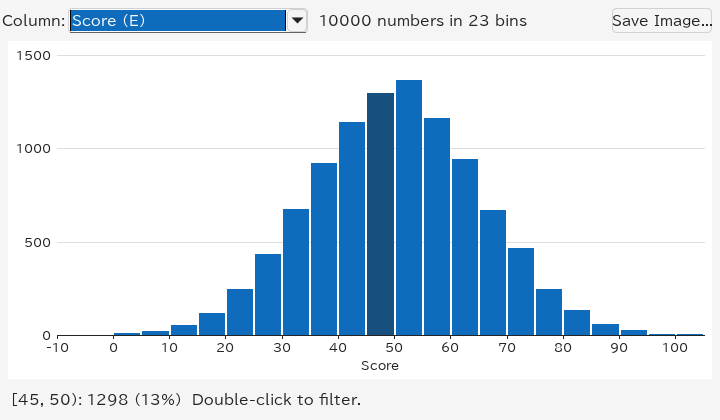
A histogram counts how many values fall into each range ("bin") of a column. Put the current cell in the column and choose Edit → Histogram... (Ctrl+Shift+H).
How to read it:
[45, 50): 1298 (13%): 1298 rows, 13% of them, have a score of at least 45 and less than 50.
Dates are counted into whole days, months or years; a column of text shows its most frequent values instead, longest bar first. See Histograms for every option and How bins are chosen for the details.
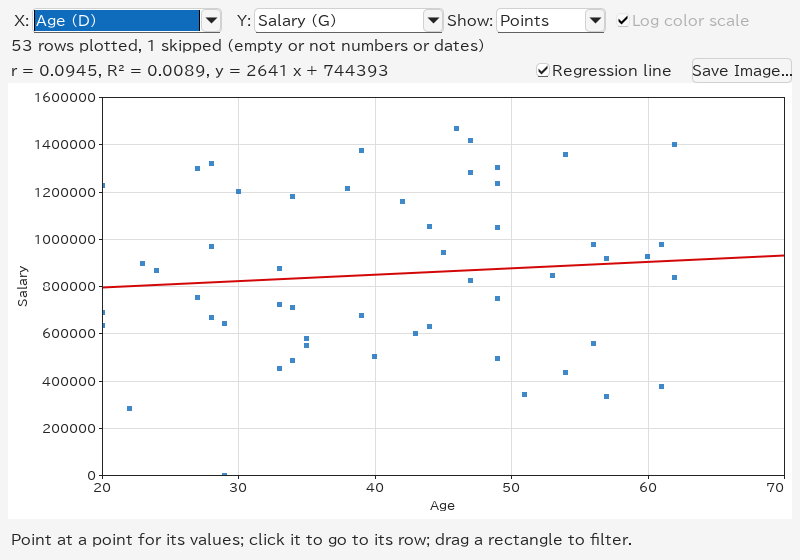
A scatter plot draws one point per row, with one column across (X) and another up (Y). Choose Edit → Scatter Plot... (Ctrl+Shift+P). Select two columns first to plot exactly those (the first one is X); otherwise TableSkim picks number or date columns near the current cell, and you can change them in the X and Y lists.
How to read it:
r = 0.0945: age says almost nothing about salary.
y = 2641 x + 744393 is the line itself, drawn in red: on average, a year of age goes with 2641 more salary.
With many rows, points pile up on each other. Show → Density counts the rows in a grid instead, and colours each cell from dark (few rows) to yellow (many):
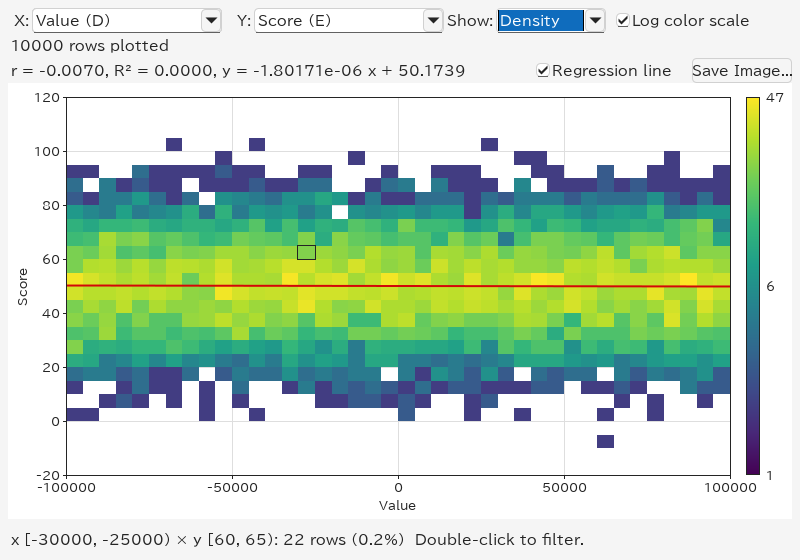
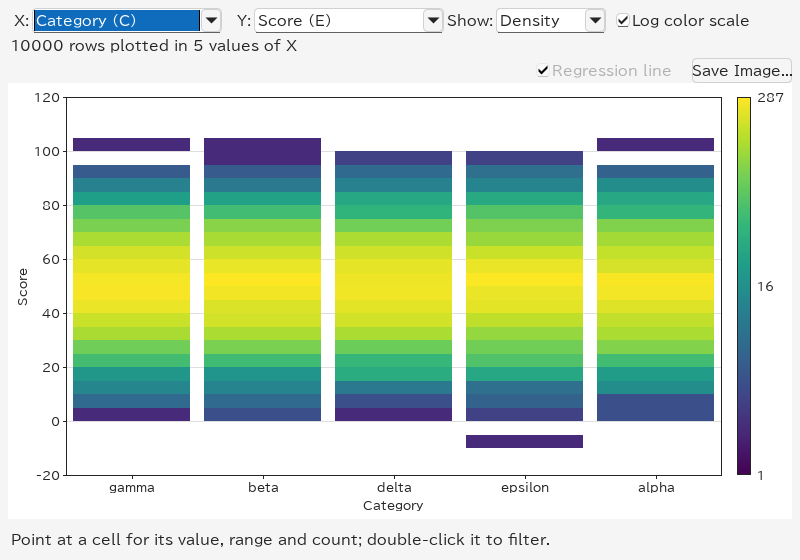
The yellow band shows where most rows lie (scores around 50, whatever the value). Log color scale keeps cells with a handful of rows visible next to the busiest ones; turn it off to compare counts linearly.
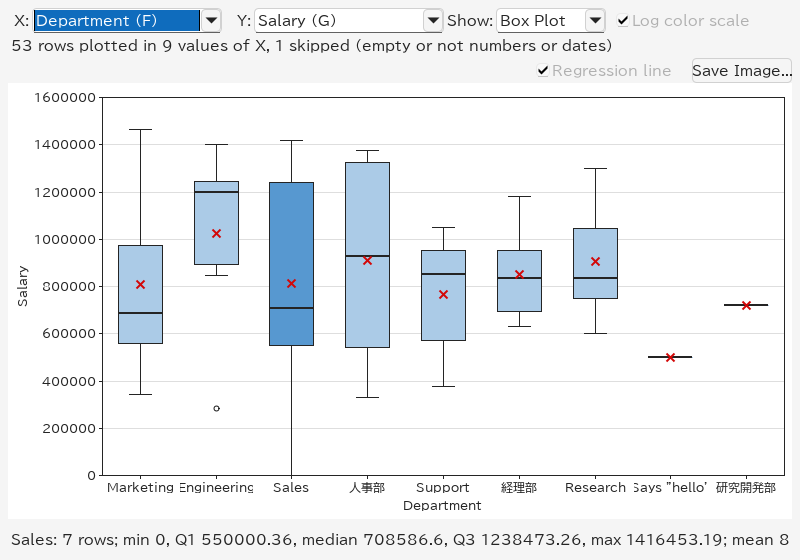
When X is a column of text, such as a department, each of its values becomes a group with a column of its own, and the plot shows a box plot per group. Here: salaries by department.
How to read a box:
Engineering has the highest median, 人事部 the widest spread; departments with one person (研究開発部) show only a line. Up to 30 groups are shown, the largest first; the rest are drawn together as (other).
For a group with more than 1,048,576 values, the box statistics are estimated from a uniform sample of that many values. The displayed row count still includes the whole group; the sample size and an estimate label appear with the box's numbers. Minimum, maximum and outlier counts also describe the sample. Density counts use all rows. The sample is the same whether points are retained or only the density is calculated.
When groups do not differ, the boxes look alike, as for the five categories of large.parquet, which were generated the same way:
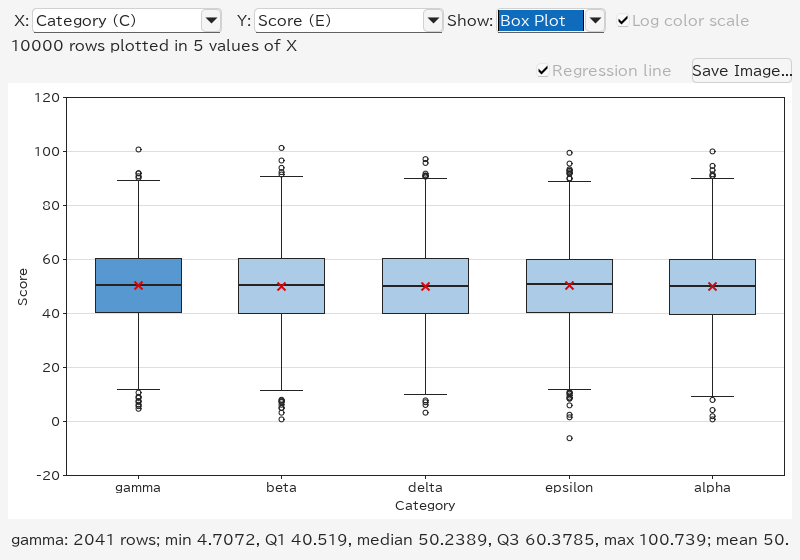
Show → Density shows each group's histogram as a column of coloured cells, which tells more about the shape than a box (two peaks, say):
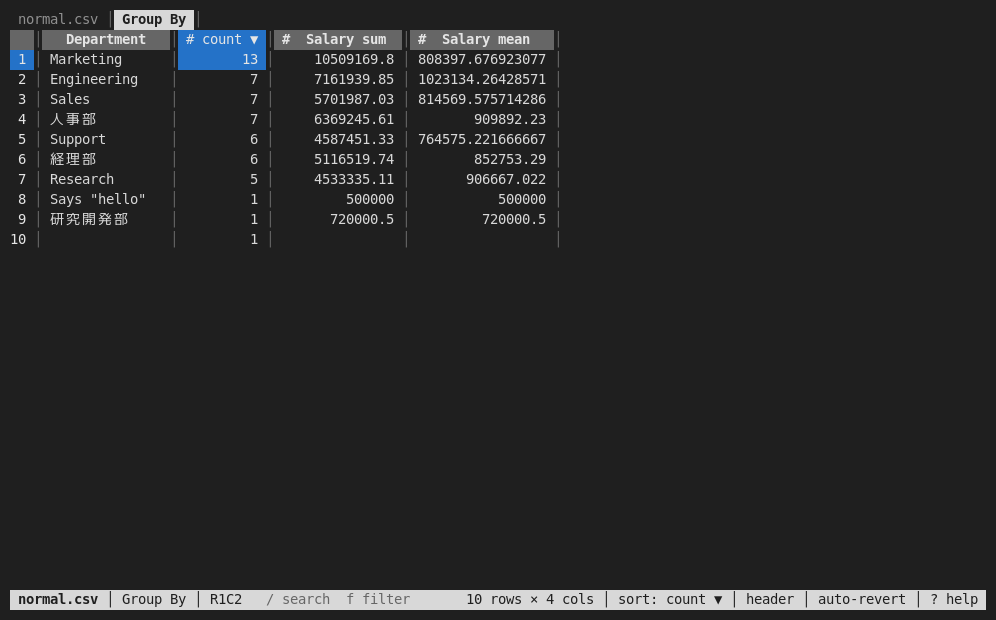
Charts show patterns; Group By gives the numbers. Edit → Group By... (Ctrl+Shift+G) asks which columns to group by and which to summarize, and puts the result in a new sheet named Group By.
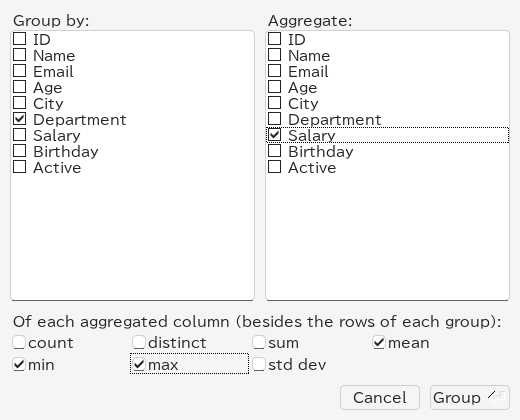
Check only a column to group by and press Group: the result has one row per value with its count. Sort the count column (click its sort button twice) to see the largest groups first:
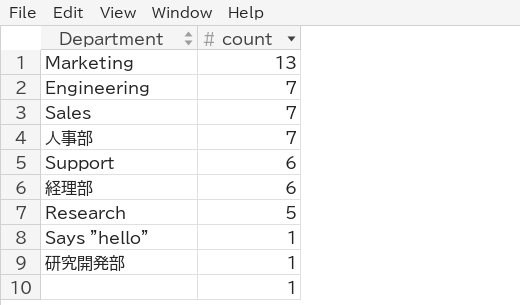
The empty last row counts the rows without a department.
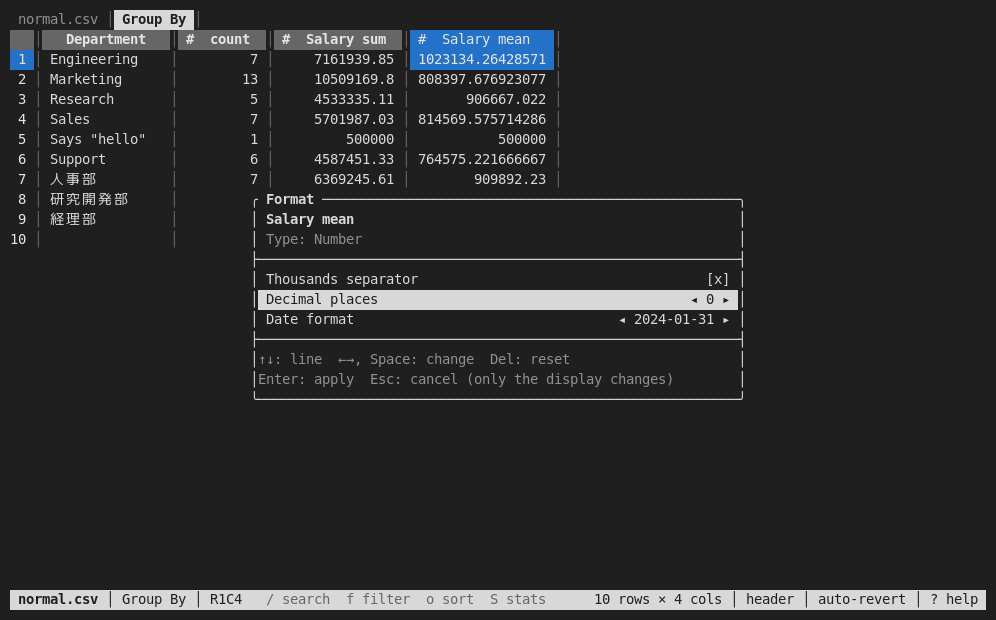
Check columns under Aggregate and the functions below: count (values that are not empty), distinct (different values), sum, mean, min, max and std dev (standard deviation). Each aggregated column and function gives a column such as Salary mean. Means often have many decimals; Format in the column header menu shows them rounded, with thousands separators:
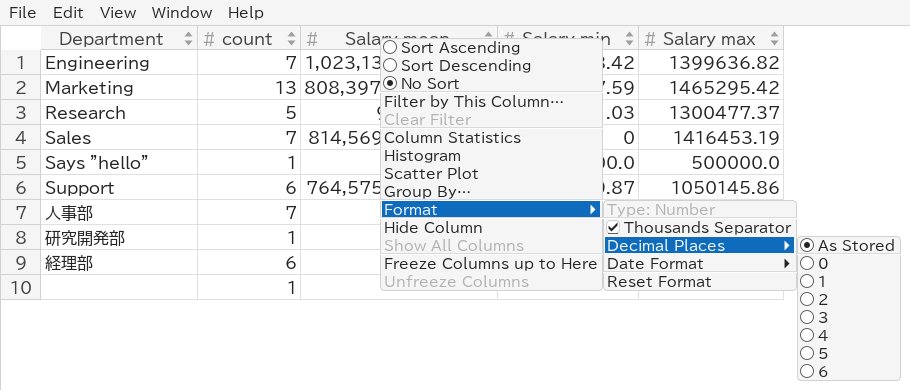
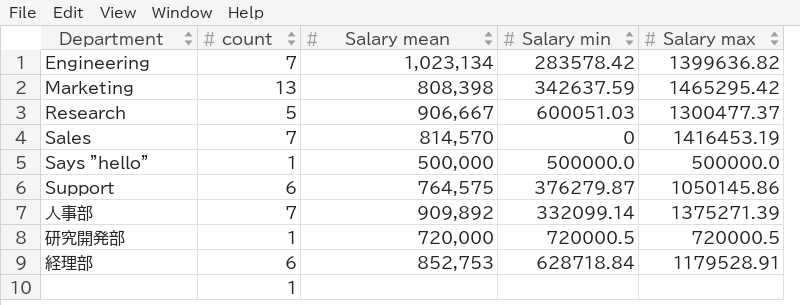
The Says "hello" row shows how text is handled: its salary is the text 500000.0, which counts as a number for the mean but is kept as written for min and max.
Leave every Group by column unchecked: all rows form one group, and the result is one row of totals:

Check two or more Group by columns to count each combination, for example City and Department: a row for each department in each city.
The Group By sheet is an ordinary sheet: sort it, filter it, chart it (a histogram of count, say), copy it, or save it with File → Export View.... Grouping again replaces it. It stays when the file is reloaded, but it does not change when the original sheet does; group again after changing the filter. See Group By for how values are compared.
Charts and filters work together, so you can drill down step by step:
Double-clicking the Engineering box above leaves the seven engineers:
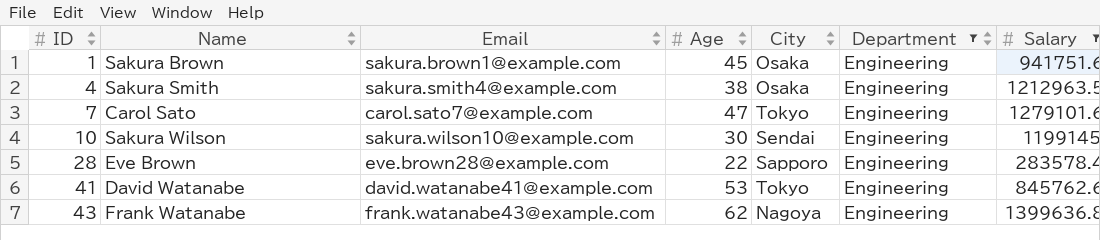
Save Image... in the histogram and scatter plot windows writes the chart as shown, with its axis titles, to a file:
.png): a picture at the size of the window, for slides, documents and chat.
.svg): lines and text stay sharp at any size, and the file can be edited in a vector drawing program. The points of a scatter plot are a picture inside it.
The type follows the extension you type, or the type chosen in the file dialog. Resize the window first to change the size of the image.
In the web app, Save PNG and Save SVG in the chart dialogs do the same; the browser saves the file into its downloads. The points of a scatter plot are separate shapes in its SVG.
The terminal UI has the same tools, drawn with characters:
B shows a histogram of the cursor's column; Enter filters to a bar.
M shows the density of two columns (select them first), or box plots when X holds text; b switches between the box plots and the density, Enter filters to a box or cell.
A opens the Group By dialog; the result is a sheet, which o sorts.
% formats the current column, as Format does in the GUI.
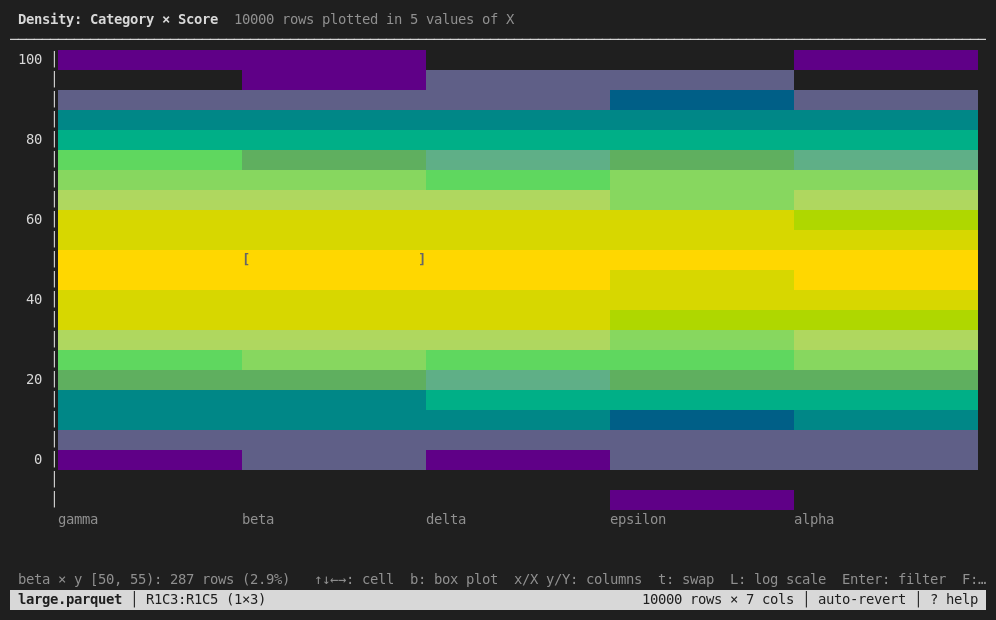
See Using the Terminal UI for all keys. Saving charts as images is available in the GUI only.